Shanghai Fangling Computer Software Co., LTD.
Tel: 021-34290970 Website: www.flcnc.com
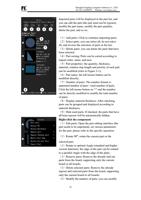
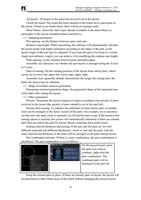
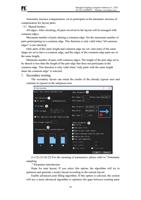
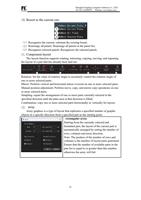
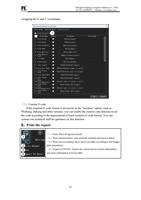
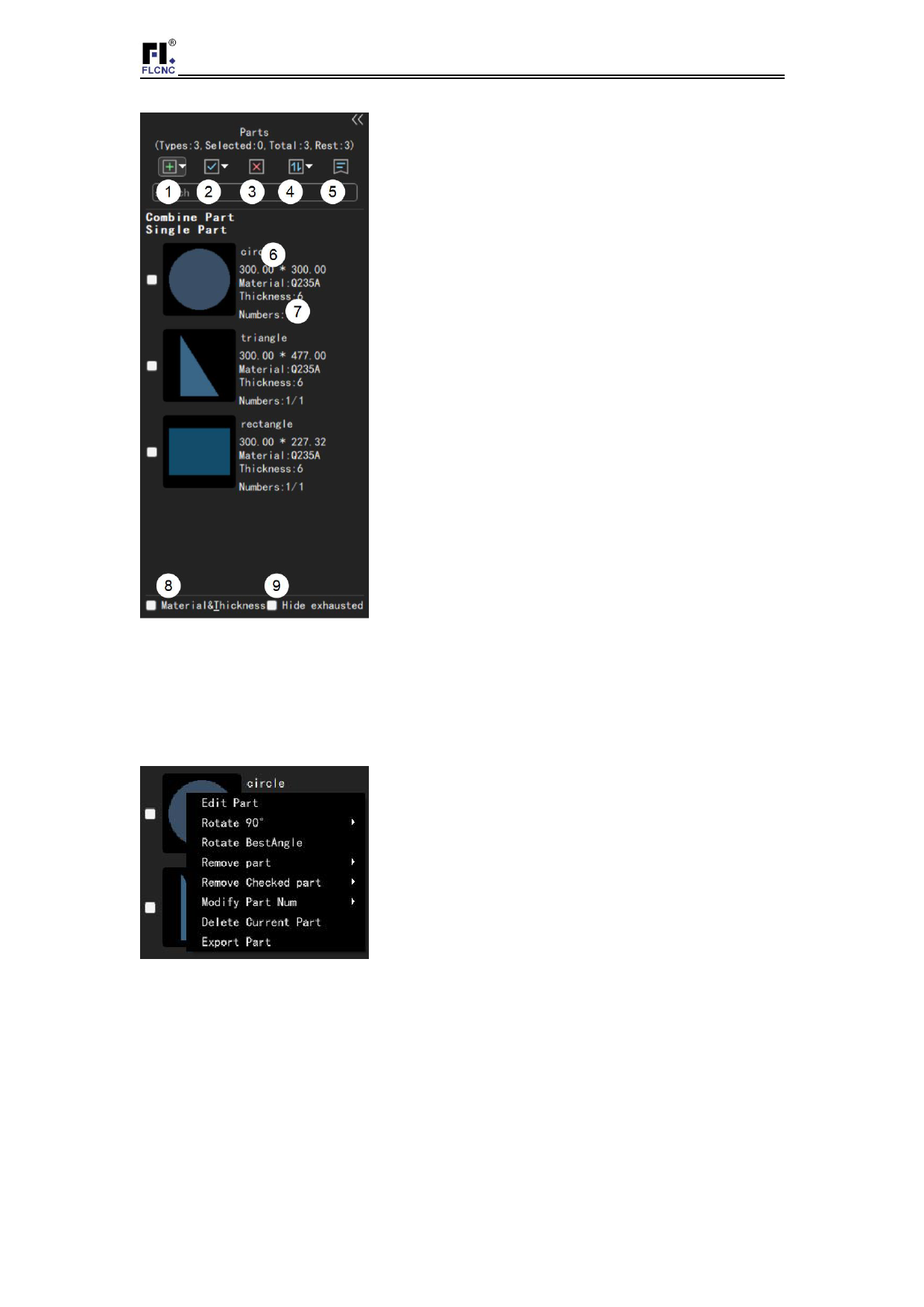
Imported parts will be displayed in the part list, and
you can edit the part (the part must not be typeset),
modify the part name, modify the part quantity,
delete the part, and so on.
(1)Add parts: Click to continue importing parts;
(2)Select parts: you can select all, do not select
all, and reverse the selection of parts in the list;
(3)Delete parts: you can delete the parts that have
been selected;
(4)Part sorting: Parts can be sorted according to
import order, name, and area
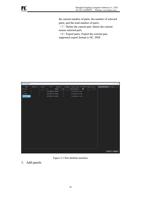
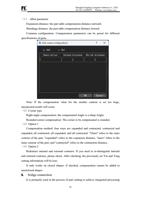
(5)Part properties: the quantity, thickness,
material, rotation step length and priority of each part
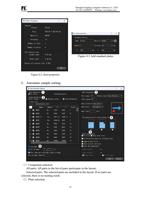
can be modified (refer to Figure 3-1);
(6)Part name: the left mouse button can be
modified directly;
(7)Number of parts: The number format is:
unprinted number of parts / total number of parts.
Click the left mouse button on "/" and the number
can be directly modified to modify the total number
of parts;
(8)Display material thickness: After checking,
parts can be grouped and displayed according to
material thickness;
(9)Hide used parts: If checked, the parts that have
all been typeset will be automatically hidden.
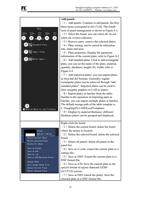
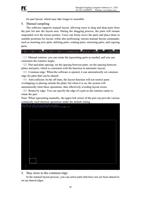
Right-click the component
(1)Edit parts: Open the part editing interface (the
part needs to be unprinted), set various parameters
for the part, please refer to the specific operation
(2)Rotate 90°: rotate the current part or the
selected part;
(3)Rotate to optimal Angle (standard and higher
version function): the edge of the part can be rotated
to a parallel Angle with the edge of the plate;
(4)Remove parts: Remove the already laid out
parts from the board, supporting only the current
board or all boards;
(5)Delete selected parts: Remove the already
typeset and selected parts from the board, supporting
only the current board or all boards;
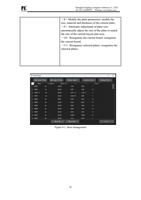
(6)Modify the number of parts: you can modify
13