Hikrobot Machine Vision Software User Manual
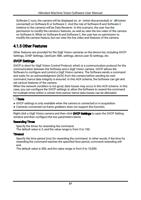
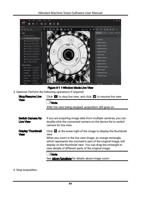
multiple-window mode will be displayed. You can drag the
camera from the device list to the display window or
double-click to camera to switch camera for live view.
6. Stop acquiring image data.
– Move the cursor to the lower part of the live video image, and then click
appearing toolbar to stop acquisition of the selected camera.
– Click to batch stop acquisition.
on the
6.3 View Local Image and Video
You can view local images and videos on the Software. The supported image formats
include BMP, JPG, PNG, TIFF, and RAW. For videos, only the videos of RAW format can be
played on the Software.
Before You Start
Make sure that no camera is connected to the Software.
Steps
1. Open local image or video file.
– Click File → Open Local File to select an image or video file from the local PC.
Note
If the display window is in multi-window mode, you should have selected a window
before clicking File → Open Local File.
– Right-click the display window and then click Open Local File to select an image or
video file from the local PC.
● If the opened local image is in BMP, JPG, PNG, or TIFF format, the image will be
displayed.
● Images in Bayer10/12, Bayer 10/12 packed format are not supported.
● If the opened local image or video is in RAW format, and its file name doesn't conform
to the required naming rules, the following window will be displayed.
Note
If the image or video is in RAW format, its name should conform to the following rules:
○ For image: XXX_w frame width value_h frame height value_p pixel format.raw (e.g.,
image_w1280_h728_pMono8.raw).
○ For video: XXX_w frame width value_h frame height value_p pixel format_f frame
rate value.raw for video (e.g., video_w1280_h728_ pMono8_f30.raw).
86