Hikrobot Machine Vision Software User Manual
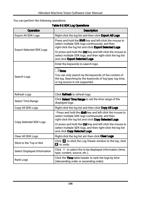
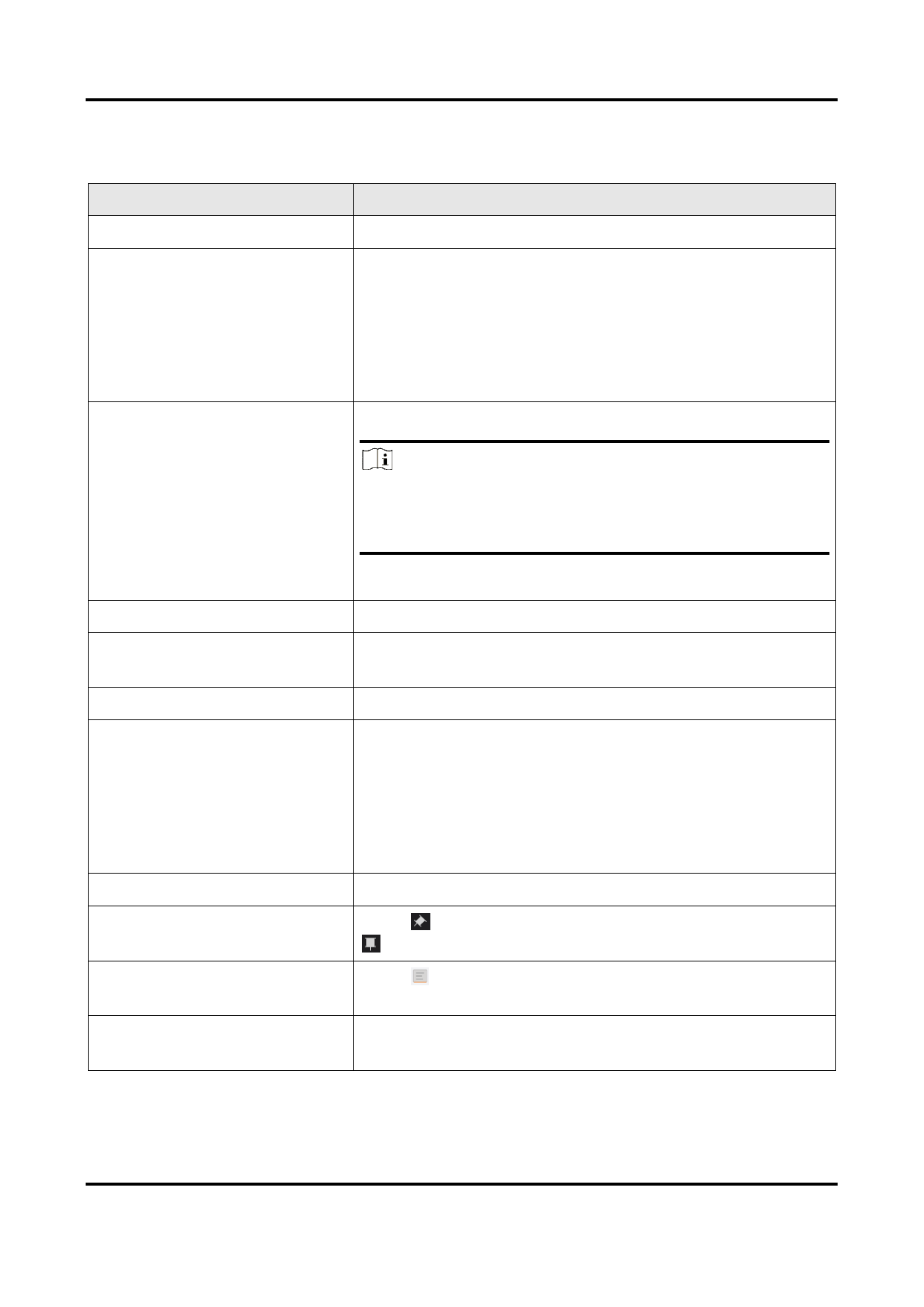
You can perform the following operations.
Table 8-2 SDK Log Operations
Operation
Description
Export All SDK Logs
Right-click the log list and then click Export All Logs.
Export Selected SDK Logs
Press and hold the Shift key and left-click the mouse to
select multiple SDK logs continuously, and then
right-click the log list and click Export Selected Logs.
Or press and hold the Ctrl key and left-click the mouse to
select multiple SDK logs, and then right-click the log list
and click Export Selected Logs.
Enter the keywords to search logs.
Search Logs
Note
You can only search by the keywords of the content of
the log. Searching by the keywords of log type, log time,
or log source is not supported.
Refresh Logs
Select Time Range
Copy All SDK Logs
Copy Selected SDK Logs
Clear All SDK Logs
Stick to the Top or Not
Select Displayed Information
Rank Logs
Click Refresh to refresh logs.
Click Select Time Range to set the time range of the
displayed logs.
Right-click the log list and then click Copy All Logs.
Press and hold the Shift key and left-click the mouse to
select multiple SDK logs continuously, and then
right-click the log list and click Copy Selected Logs.
Or press and hold the Ctrl key and left-click the mouse to
select multiple SDK logs, and then right-click the log list
and click Copy Selected Logs.
Right-click the log list ant then click Clear Logs
Click to stick the Log Viewer window to the top, click
to undo.
Click to select the to-be-displayed information (time,
type, content, source, etc.).
Click the Time table header to rank the logs by time
(descending order or ascending order).
136