Shenzhen RelFar Intelligent Technology Co., Ltd.
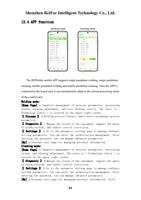
My application, as seen in the above picture, the one added by this user, can manage
the added applications.
Application Center, where applications can be added.
Personal information, click this button to go to my profile, you can modify person
information.
Log out. Click this button to exit to the login page.
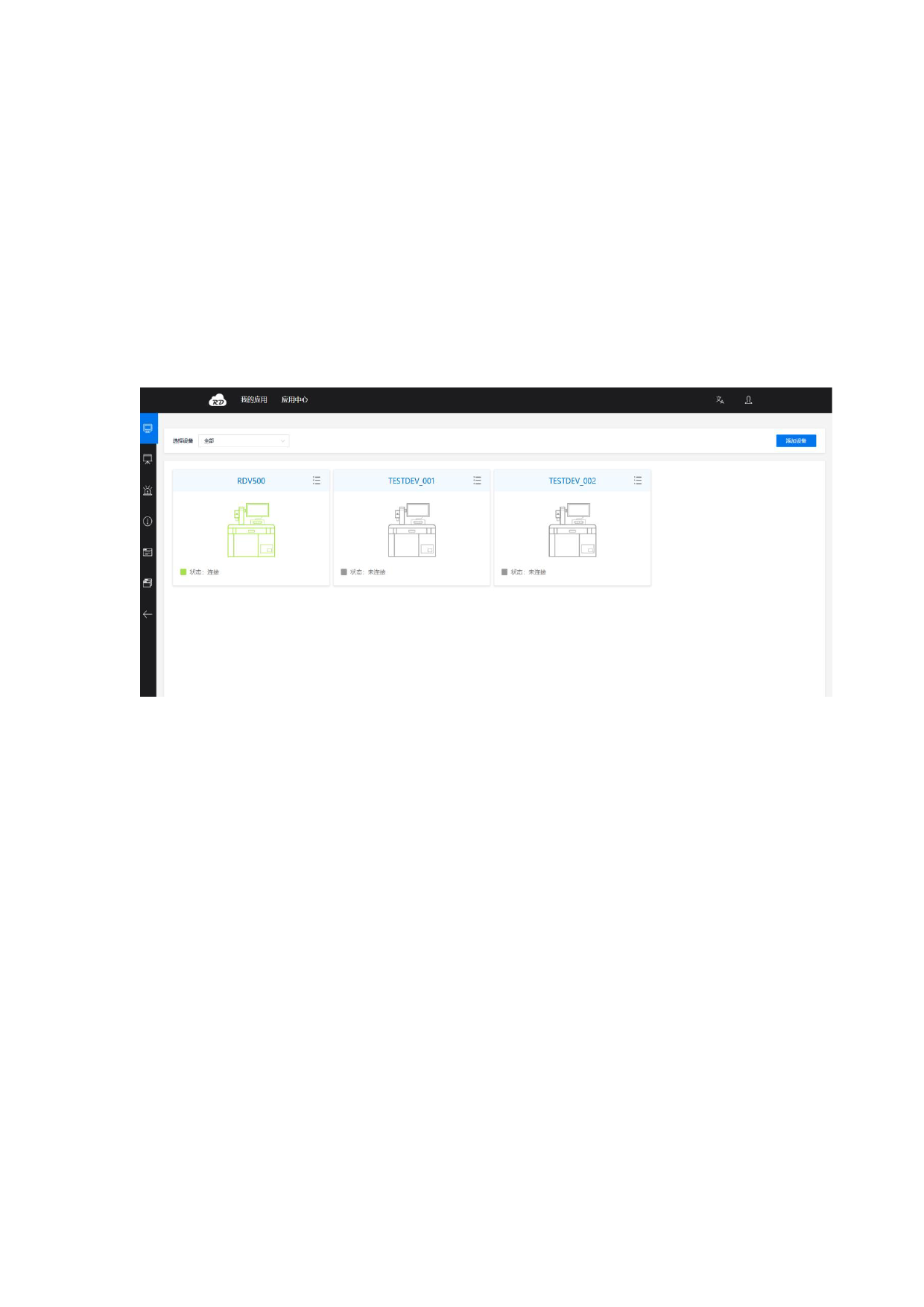
13.4 Equipment Management
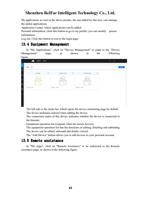
In "My Applications", click on "Device Management" to jump to the "Device
Management"
page,
as
shown
in
the
following
figure.
The left side is the menu bar, which opens the device monitoring page by default.
The device nickname entered when adding the device.
The connection status of this device indicates whether the device is connected to
the Internet.
Equipment operation list (expands when the mouse hovers).
The equipment operation list has the functions of editing, detailing and unbinding.
The device can be edited, unbound and details viewed.
The "Add Device" button allows you to add devices to your personal account.
13.5 Remote assistance
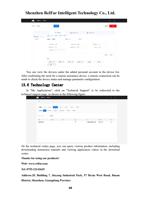
In "My Apps", click on "Remote Assistance" to be redirected to the Remote
assistance page, as shown in the following figure.
43