User Manual of Machine Vision Camera SDK Plugin (Sherlock)
2) Click Program and click Save As.
3) Set the file name as MyTest.ivs.
4) Save the file to directory: C:\Program Files (x86)\Teledyne DALSA\Sherlock\Bin
5) Close Sherlock software.
5. Create Cam1.Bat and Cam2.bat files.
1) Create Cam1.bat and Cam2.bat files in the directory: C:\Program Files (x86)\Teledyne
DALSA\Sherlock\Bin.
2) Edit the file Cam1.bat as:
start "" "C:\Program Files (x86)\Teledyne DALSA\Sherlock\Bin\IpeStudio.exe" -acq:Drivers1.ini -load: MyTest.ivs
3) Edit the file Cam2.bat as:
start "" "C:\Program Files (x86)\Teledyne DALSA\Sherlock\Bin\IpeStudio.exe" -acq:Drivers2.ini -load: MyTest.ivs
Notes:
For different operating system the directory is different. The above directory (C:\Program Files
(x86)\Teledyne DALSA\Sherlock\Bin) is for Windows 7 32-bit system. If the system is Windows 7
64-bit, the directory is: C:\Program Files\Teledyne DALSA\Sherlockx64\Bin.
The referenced*ini and *ivs files name should correspond to the previous settings.
6. Connect camera via multiple Sherlock systems.
1) Double-click Cam1.bat to run the Sherlock software and connect the cameras, which are added in
the Cam1.bat file.
2) Double-click Cam2.bat to run the Sherlock software and connect the cameras, which are added in
the Cam2.bat file.
Notes:
If you want to change the connected cameras, edit the serial number in UsrAcqDrv*.ini files.
If there is no UsrAcqDrv*.ini file or no keyword Cam* in UsrAcqDrv*.ini file, all the cameras will be
enumerated by default.
2.6Connect CoaXPress Camera
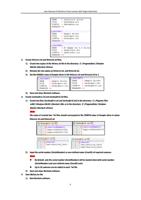
1. Configure file format
[GenTLPath]
PATH=C:/123.cti
[InterfaceID]
IF1=FG0
[SerialNumber]
Cam1=12345678911
Cam2=12345678922
1) Configure the cti file path as the GenTL Path.
2) Choose the interface number as the InterfaceID. Support maximum of 8 interfaces, from IF1 to IF8.
FGO is the interface name of the framegrabber.
3) Select the desired camera number as the SerialNumer. Support maximum of 16 cameras, from
Cam1 to Cam16.
7