Home
3D
PrintUP 3D Printer
PioCreat 3D Printer
Printers
FastCOLOUR >>
ATools
DTF Textile
UV-DTF
PrinExp
InkRIP
Lasers
TruCUT CO
2
>>
TruCUT RDWorks
TruCUT 2020+
TruCUT Express
TruCUT Lite >>
4030 & Vertical Software
4030 & Vertical Documents
New 6040 Desktop
LabelMark
RayCUT
MorCUT >>
MorCUT-Cyclops
LaserMaster
Plasmas
MetalWise
Fabricam
Routers
EasyRoute
PowerRoute
Blade Cutters
Vinyl Cutters >>
V-Series
V-Smart
V-Auto (& V-Smart+)
Vinyl4
Flatbed Cutters >>
FlatCUT
Label Cutters >>
V-Auto Label Cutters
Software >>
VinylCut
More
FastCUT
Heatware
Rollman
ScreenMaster
Other Software
Miscellaneous
AM.CO.ZA
/
Buy CNC Software
/
CNC Software Training
/
CNC Software Downloads
Sales: 072 222 2211
Support: 076 666 6655
Training: 060 818 1818
Jo’burg: 087 802 5368
Cape Town: 087 802 7106
An
Project
Multimedia
Univision Videos
#SortIT Videos
MakersLab.TV
Software Training
Welldone Gallery
Updates
Prevision Blog
Cornerstone Trust
Email Campaigns
Contact Us
Sales WhatsApp
060 600 6000
Support WhatsApp
060 600 7000
Johannesburg Headquarters
011 397 1429
087 802 5368
Cape Town Showroom
021 555 3250
087 802 7106
Links
CNC Machine Repair
Vinyl Cutter
Heatware
You are here:
AM.CO.ZA
Buythis
CNC Utilities Homepage
V-Smart-Vinyl-Cutting-Plotter
SignMaster CUT+ARMS Sign and Vinyl Cutting Software
Automatic Contour Cutting by SignMaster on V-Smart Plus and V-Auto Vinyl Cutter.pdf
Page 7 of 14
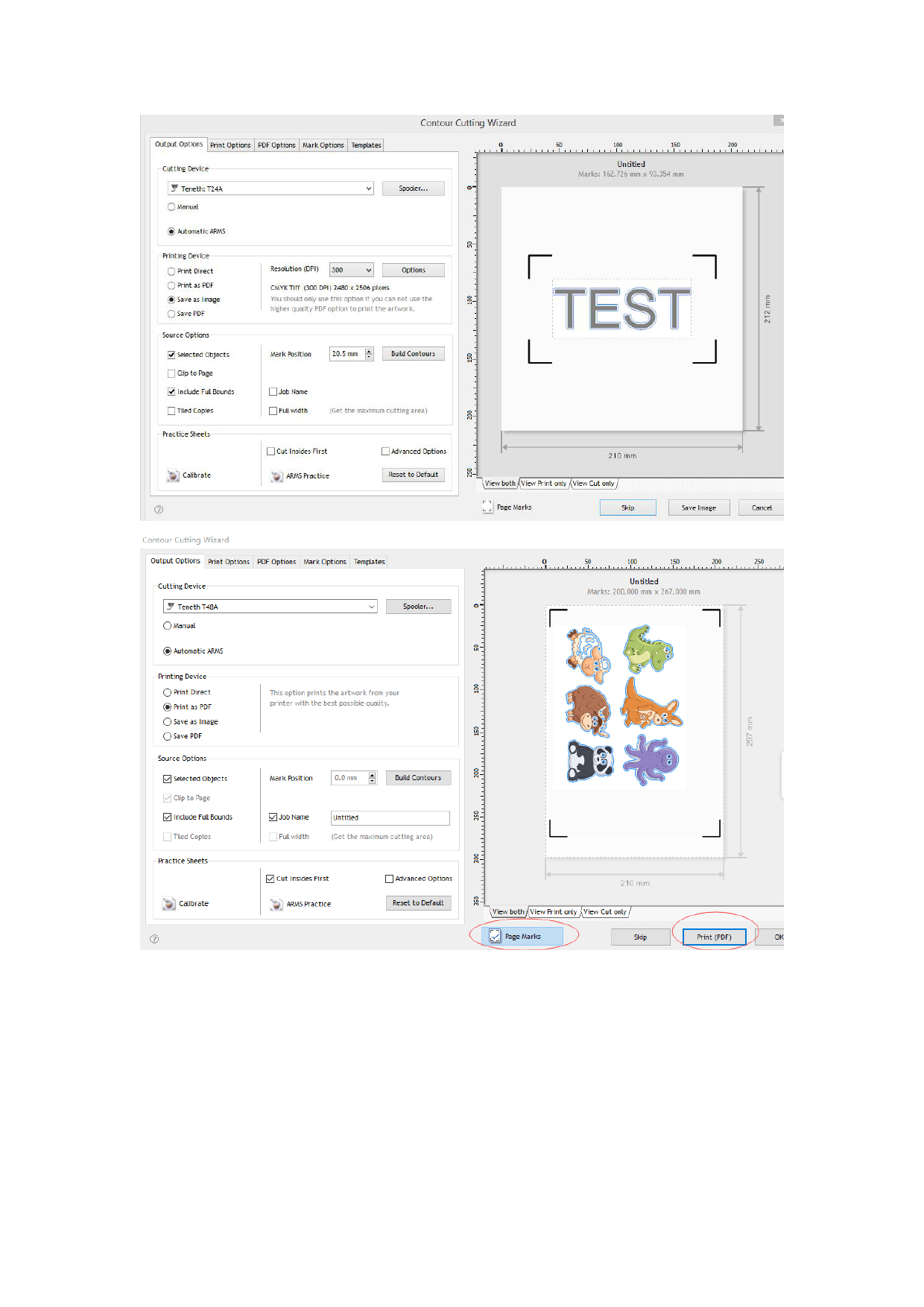
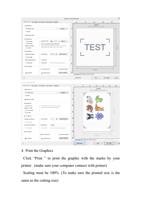
4. Print the Graphics
Click “Print ” to print the graphic with the marks by your
printer . (make sure your computer connect with printer)
Scaling must be 100% .(To make sure the printed size is the
same as the cutting size)
"
Do you need help?
Call Me Back