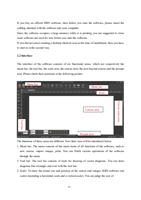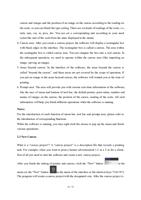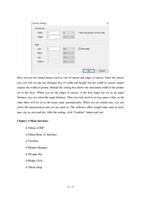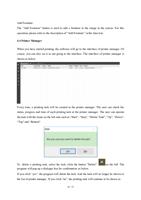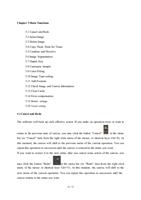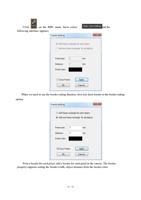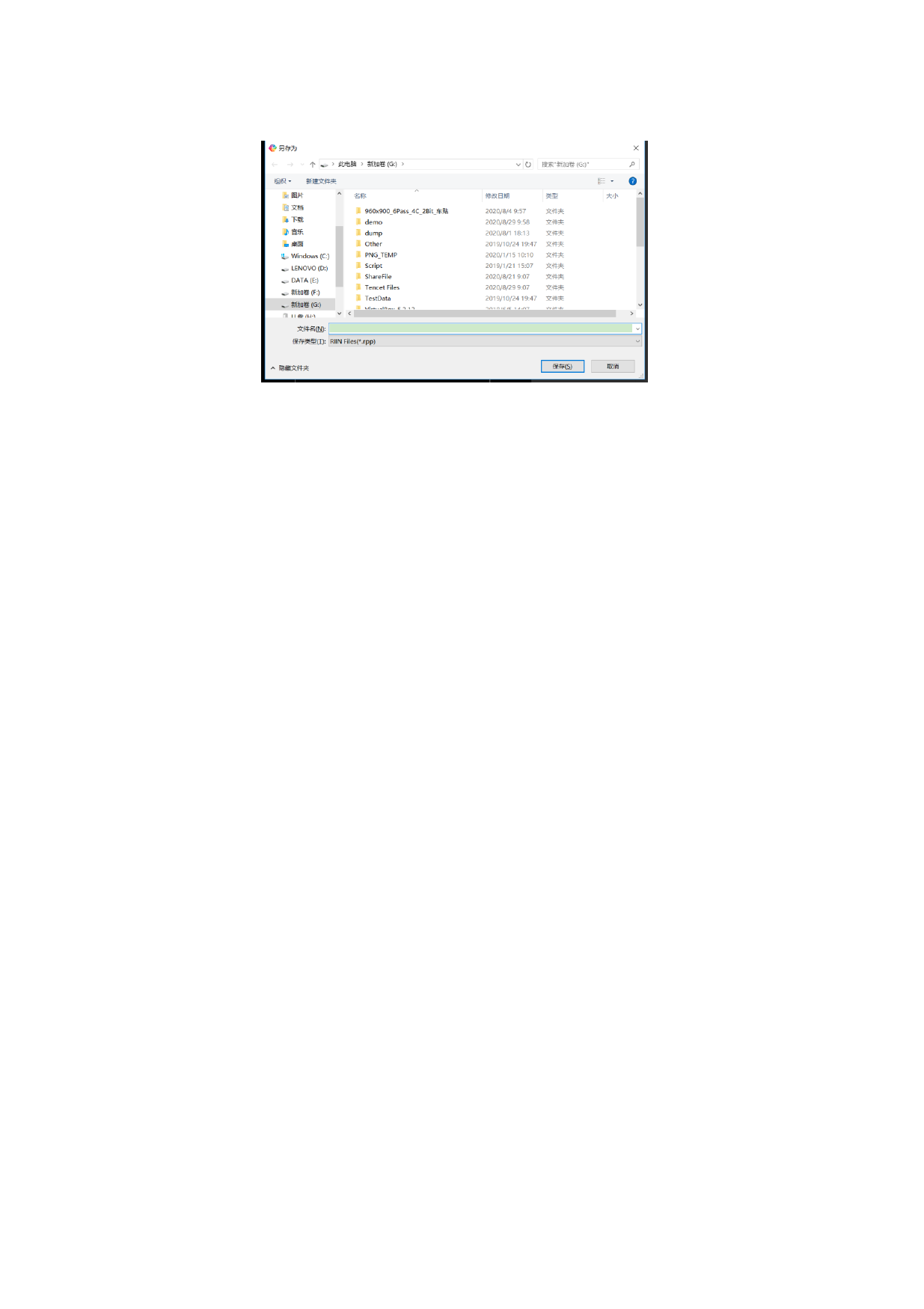
You can select the saving path and file name of the canvas project, and then click the Save
button. The program will save all related information of the current print task into the
designated file (the file name is the name you enter, with a suffix of .rpp). Later, you can use
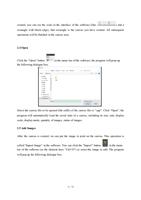
the “Open” function to load a canvas file into the RIP software. The software interface will
restore it to the status when you saved the canvas file. You can continue to edit it or directly
output it.
Note:
If you have changed a canvas project, when you close the canvas or exit the program, the
program prompts you to save the current canvas changes. It is recommended that you save
the canvas changes so that the program can save the parameters of the print task to the
canvas project file, such as print parameters, canvas size, number of images, location etc.
The advantage is that when you need to print the same image again, you only need to ope n
the saved canvas file, the program automatically loads the relevant parameters from the
source canvas project to significantly save your time and improve efficiency.
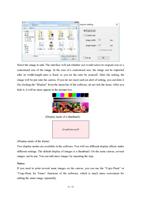
The Save As option of canvas project file is similar to the Save option above. In the same
print task, if you have saved the canvas project file once, the Save As dialog box will not pop
up again. The program will directly save the canvas project using the same file name you
saved last time. However, you can click the “Save As” option to change the canvas file name
and location.
14 / 74