Home
3D
PrintUP 3D Printer
PioCreat 3D Printer
Printers
FastCOLOUR >>
ATools
DTF Textile
UV-DTF
FlatPRINT
PrintExp
InkRIP
Lasers
TruCUT CO
2
>>
TruCUT RDWorks
TruCUT 2020+
TruCUT Express
TruCUT Lite >>
4030 & Vertical Software
4030 & Vertical Documents
New 6040 Desktop
LabelMark
RayCUT
MorCUT >>
MorCUT-Cyclops
LaserMaster
Plasmas
MetalWise
Fabricam
Routers
EasyRoute
PowerRoute
Blade Cutters
Vinyl Cutters >>
V-Series
V-Smart
V-Auto (& V-Smart+)
Vinyl4
Flatbed Cutters >>
FlatCUT
Label Cutters >>
V-Auto Label Cutters
Software >>
VinylCut
More
FastCUT
Heatware
Rollman
ScreenMaster
Other Software
Miscellaneous
AM.CO.ZA
/
Buy CNC Software
/
CNC Software Training
/
CNC Software Downloads
Sales: 072 222 2211
Support: 076 666 6655
Training: 060 818 1818
Jo’burg: 087 802 5368
Cape Town: 087 802 7106
An
Project
Multimedia
Univision Videos
#SortIT Videos
MakersLab.TV
Software Training
Welldone Gallery
Updates
Prevision Blog
Cornerstone Trust
Email Campaigns
Contact Us
Sales WhatsApp
060 600 6000
Support WhatsApp
060 600 7000
Johannesburg Headquarters
011 397 1429
087 802 5368
Cape Town Showroom
021 555 3250
087 802 7106
Links
CNC Machine Repair
Vinyl Cutter
Heatware
You are here:
AM.CO.ZA
Buythis
CNC Utilities Homepage
Other-Softwares
AM.CO.ZA AcroRIP DTG-RIP & DTF-RIP Software
AM.CO.ZA AcroRIP V10.3 User Manual and Usage Guide 1.0.pdf
Page 20 of 48
P
a
g
e
1
of
48
C
o
p
y
r
ig
h
t ©
An
d
All Ri
g
h
ts
R
eser
v
ed
|
Acr
o
r
i
p
.
co
m
®
|
DT
GR
I
P
® |
DT
FR
I
P
®
W
o
r
k
s
o
n
ly
with
W
in
d
o
ws 7
/
8
/ 1
0
A
C
R
O
RIP
V10
.
3
©
Us
er
Manual a
nd
Us
age
Guide
–
BET
A
GUID
E
1.
0
This
fir
st ver
sion o
f this gui
de
is being re
lea
s
e
d O
c
tober
2021 in B
ET
A
MOD
E
a
nd is
subj
e
c
t t
o re
visi
on / update
s
.
Y
ou c
a
n downl
oa
d the la
test gui
de
a
t
acr
ori
p.c
om
Softwar
e
Security
&
Piracy Noti
ce
:
B
eware
o
f
p
i
r
a
t
ed
sof
t
w
ar
e
t
ha
t
cou
l
d c
aus
e
har
m
, d
oes
not
w
or
k pr
o
per
l
y
,
and
co
n
t
ai
n
vi
r
us
es
.
B
uy onl
y
f
r
o
m
aut
h
or
i
ze
d
r
es
el
l
e
r
s
as
l
i
s
t
ed
at
h
t
t
ps
:
/
/
a
cr
or
i
p.
com
/
w
he
r
e
-
t
o
-
buy
.p
hp
.
R
epor
t
pi
r
ac
y of
V
10 o
r
ne
w
er
a
t
ht
t
ps
:
/
/
a
cr
o
r
i
p.
co
m
/
a
nt
i
p
i
r
ac
y
.p
hp
.
P
a
g
e
2
of
48
C
o
p
y
r
ig
h
t ©
An
d
All Ri
g
h
ts
R
eser
v
ed
|
Acr
o
r
i
p
.
co
m
®
|
DT
GR
I
P
® |
DT
FR
I
P
®
W
o
r
k
s
o
n
ly
with
W
in
d
o
ws 7
/
8
/ 1
0
T
able
of
C
o
ntent
s
PRE
F
A
C
E:
.
.
.
.
.
.
.
.
.
.
.
.
.
.
.
.
.
.
.
.
.
.
.
.
.
.
.
.
.
.
.
.
.
.
.
.
.
.
.
.
.
.
.
.
.
.
.
.
.
.
.
.
.
.
.
.
.
.
.
.
.
.
.
.
.
.
.
.
.
.
.
.
.
.
.
.
.
.
.
.
.
.
.
.
.
.
.
.
.
.
.
.
.
.
.
.
.
.
.
.
.
.
.
.
.
.
.
.
.
.
.
.
.
.
.
.
.
.
.
.
.
.
.
.
.
.
.
.
.
.
.
.
.
.
.
.
.
.
.
.
.
.
.
.
.
.
.
.
.
6
I
C
O
N
L
E
GE
N
D
-
.
.
.
.
.
.
.
.
.
.
.
.
.
.
.
.
.
.
.
.
.
.
.
.
.
.
.
.
.
.
.
.
.
.
.
.
.
.
.
.
.
.
.
.
.
.
.
.
.
.
.
.
.
.
.
.
.
.
.
.
.
.
.
.
.
.
.
.
.
.
.
.
.
.
.
.
.
.
.
.
.
.
.
.
.
.
.
.
.
.
.
.
.
.
.
.
.
.
.
.
.
.
.
.
.
.
.
.
.
.
.
.
.
.
.
.
.
.
.
.
.
.
.
.
.
.
.
.
.
.
.
.
.
.
.
.
.
.
.
.
.
.
.
.
7
I
N
S
T
AL
L
I
N
G
A
C
R
OR
I
P T
O
Y
OUR C
OM
PU
T
ER
.
.
.
.
.
.
.
.
.
.
.
.
.
.
.
.
.
.
.
.
.
.
.
.
.
.
.
.
.
.
.
.
.
.
.
.
.
.
.
.
.
.
.
.
.
.
.
.
.
.
.
.
.
.
.
.
.
.
.
.
.
.
.
.
.
.
.
.
.
.
.
.
.
.
.
.
.
.
.
.
.
.
.
.
.
.
.
.
.
.
.
.
.
.
.
.
.
.
.
7
US
I
N
G
T
HE
A
C
R
O
RI
P US
ER
I
N
T
ER
F
A
C
E
.
.
.
.
.
.
.
.
.
.
.
.
.
.
.
.
.
.
.
.
.
.
.
.
.
.
.
.
.
.
.
.
.
.
.
.
.
.
.
.
.
.
.
.
.
.
.
.
.
.
.
.
.
.
.
.
.
.
.
.
.
.
.
.
.
.
.
.
.
.
.
.
.
.
.
.
.
.
.
.
.
.
.
.
.
.
.
.
.
.
.
.
.
.
.
.
.
.
.
.
.
.
.
.
.
.
.
8
U
S
IN
G
TH
E
DR
O
P
-
D
O
WN
M
E
N
U
S
.
.
.
.
.
.
.
.
.
.
.
.
.
.
.
.
.
.
.
.
.
.
.
.
.
.
.
.
.
.
.
.
.
.
.
.
.
.
.
.
.
.
.
.
.
.
.
.
.
.
.
.
.
.
.
.
.
.
.
.
.
.
.
.
.
.
.
.
.
.
.
.
.
.
.
.
.
.
.
.
.
.
.
.
.
.
.
.
.
.
.
.
.
.
.
.
.
.
.
.
.
.
.
.
.
.
.
.
.
.
.
.
.
.
.
.
.
.
.
.
.
.
8
F
IL
E
M
E
N
U
.
.
.
.
.
.
.
.
.
.
.
.
.
.
.
.
.
.
.
.
.
.
.
.
.
.
.
.
.
.
.
.
.
.
.
.
.
.
.
.
.
.
.
.
.
.
.
.
.
.
.
.
.
.
.
.
.
.
.
.
.
.
.
.
.
.
.
.
.
.
.
.
.
.
.
.
.
.
.
.
.
.
.
.
.
.
.
.
.
.
.
.
.
.
.
.
.
.
.
.
.
.
.
.
.
.
.
.
.
.
.
.
.
.
.
.
.
.
.
.
.
.
.
.
.
.
.
.
.
.
.
.
.
.
.
.
.
.
.
.
.
.
.
.
.
.
.
.
.
9
E
D
IT
M
E
N
U
.
.
.
.
.
.
.
.
.
.
.
.
.
.
.
.
.
.
.
.
.
.
.
.
.
.
.
.
.
.
.
.
.
.
.
.
.
.
.
.
.
.
.
.
.
.
.
.
.
.
.
.
.
.
.
.
.
.
.
.
.
.
.
.
.
.
.
.
.
.
.
.
.
.
.
.
.
.
.
.
.
.
.
.
.
.
.
.
.
.
.
.
.
.
.
.
.
.
.
.
.
.
.
.
.
.
.
.
.
.
.
.
.
.
.
.
.
.
.
.
.
.
.
.
.
.
.
.
.
.
.
.
.
.
.
.
.
.
.
.
.
.
.
.
.
.
1
3
L
A
N
GU
A
GE
M
E
N
U
.
.
.
.
.
.
.
.
.
.
.
.
.
.
.
.
.
.
.
.
.
.
.
.
.
.
.
.
.
.
.
.
.
.
.
.
.
.
.
.
.
.
.
.
.
.
.
.
.
.
.
.
.
.
.
.
.
.
.
.
.
.
.
.
.
.
.
.
.
.
.
.
.
.
.
.
.
.
.
.
.
.
.
.
.
.
.
.
.
.
.
.
.
.
.
.
.
.
.
.
.
.
.
.
.
.
.
.
.
.
.
.
.
.
.
.
.
.
.
.
.
.
.
.
.
.
.
.
.
.
.
.
.
.
.
.
1
4
4
(
AL
T
+
L
)
–
.
.
.
.
.
.
.
.
.
.
.
.
.
.
.
.
.
.
.
.
.
.
.
.
.
.
.
.
.
.
.
.
.
.
.
.
.
.
.
.
.
.
.
.
.
.
.
.
.
.
.
.
.
.
.
.
.
.
.
.
.
.
.
.
.
.
.
.
.
.
.
.
.
.
.
.
.
.
.
.
.
.
.
.
.
.
.
.
.
.
.
.
.
.
.
.
.
.
.
.
.
.
.
.
.
.
.
.
.
.
.
.
.
.
.
.
.
.
.
.
.
.
.
.
.
.
.
.
.
.
.
.
.
.
.
.
.
.
.
.
.
.
.
.
.
1
4
4
V
IE
W
M
E
N
U
.
.
.
.
.
.
.
.
.
.
.
.
.
.
.
.
.
.
.
.
.
.
.
.
.
.
.
.
.
.
.
.
.
.
.
.
.
.
.
.
.
.
.
.
.
.
.
.
.
.
.
.
.
.
.
.
.
.
.
.
.
.
.
.
.
.
.
.
.
.
.
.
.
.
.
.
.
.
.
.
.
.
.
.
.
.
.
.
.
.
.
.
.
.
.
.
.
.
.
.
.
.
.
.
.
.
.
.
.
.
.
.
.
.
.
.
.
.
.
.
.
.
.
.
.
.
.
.
.
.
.
.
.
.
.
.
.
.
.
.
.
.
.
1
4
4
(
AL
T
+
V
)
–
.
.
.
.
.
.
.
.
.
.
.
.
.
.
.
.
.
.
.
.
.
.
.
.
.
.
.
.
.
.
.
.
.
.
.
.
.
.
.
.
.
.
.
.
.
.
.
.
.
.
.
.
.
.
.
.
.
.
.
.
.
.
.
.
.
.
.
.
.
.
.
.
.
.
.
.
.
.
.
.
.
.
.
.
.
.
.
.
.
.
.
.
.
.
.
.
.
.
.
.
.
.
.
.
.
.
.
.
.
.
.
.
.
.
.
.
.
.
.
.
.
.
.
.
.
.
.
.
.
.
.
.
.
.
.
.
.
.
.
.
.
.
.
.
1
4
4
H
E
L
P
M
E
N
U
.
.
.
.
.
.
.
.
.
.
.
.
.
.
.
.
.
.
.
.
.
.
.
.
.
.
.
.
.
.
.
.
.
.
.
.
.
.
.
.
.
.
.
.
.
.
.
.
.
.
.
.
.
.
.
.
.
.
.
.
.
.
.
.
.
.
.
.
.
.
.
.
.
.
.
.
.
.
.
.
.
.
.
.
.
.
.
.
.
.
.
.
.
.
.
.
.
.
.
.
.
.
.
.
.
.
.
.
.
.
.
.
.
.
.
.
.
.
.
.
.
.
.
.
.
.
.
.
.
.
.
.
.
.
.
.
.
.
.
.
.
.
.
.
1
6
6
(
A
L
T
+
H
)
–
.
.
.
.
.
.
.
.
.
.
.
.
.
.
.
.
.
.
.
.
.
.
.
.
.
.
.
.
.
.
.
.
.
.
.
.
.
.
.
.
.
.
.
.
.
.
.
.
.
.
.
.
.
.
.
.
.
.
.
.
.
.
.
.
.
.
.
.
.
.
.
.
.
.
.
.
.
.
.
.
.
.
.
.
.
.
.
.
.
.
.
.
.
.
.
.
.
.
.
.
.
.
.
.
.
.
.
.
.
.
.
.
.
.
.
.
.
.
.
.
.
.
.
.
.
.
.
.
.
.
.
.
.
.
.
.
.
.
.
.
.
.
.
.
.
1
6
6
A
C
R
O
RI
P'
S
US
ER
I
N
T
ER
F
A
C
E
EX
PLA
I
N
ED
.
.
.
.
.
.
.
.
.
.
.
.
.
.
.
.
.
.
.
.
.
.
.
.
.
.
.
.
.
.
.
.
.
.
.
.
.
.
.
.
.
.
.
.
.
.
.
.
.
.
.
.
.
.
.
.
.
.
.
.
.
.
.
.
.
.
.
.
.
.
.
.
.
.
.
.
.
.
.
.
.
.
.
.
.
.
.
.
.
.
.
.
.
.
.
.
.
.
.
1
7
7
I
M
A
G
E
P
RE
V
I
EW P
AN
E
W
I
T
H
I
M
A
G
E
I
N
FO
RM
A
T
I
O
N
.
.
.
.
.
.
.
.
.
.
.
.
.
.
.
.
.
.
.
.
.
.
.
.
.
.
.
.
.
.
.
.
.
.
.
.
.
.
.
.
.
.
.
.
.
.
.
.
.
.
.
.
.
.
.
.
.
.
.
.
.
.
.
.
.
.
.
.
.
.
.
.
.
.
.
.
.
.
.
.
.
.
.
1
8
I
M
A
G
E
T
HUM
B
N
AI
LS
-
.
.
.
.
.
.
.
.
.
.
.
.
.
.
.
.
.
.
.
.
.
.
.
.
.
.
.
.
.
.
.
.
.
.
.
.
.
.
.
.
.
.
.
.
.
.
.
.
.
.
.
.
.
.
.
.
.
.
.
.
.
.
.
.
.
.
.
.
.
.
.
.
.
.
.
.
.
.
.
.
.
.
.
.
.
.
.
.
.
.
.
.
.
.
.
.
.
.
.
.
.
.
.
.
.
.
.
.
.
.
.
.
.
.
.
.
.
.
.
.
.
.
.
.
.
1
9
9
P
a
g
e
3
of
48
C
o
p
y
r
ig
h
t ©
An
d
All Ri
g
h
ts
R
eser
v
ed
|
Acr
o
r
i
p
.
co
m
®
|
DT
GR
I
P
® |
DT
FR
I
P
®
W
o
r
k
s
o
n
ly
with
W
in
d
o
ws 7
/
8
/ 1
0
P
A
GE
P
R
E
V
IE
W
P
A
N
E
L
.
.
.
.
.
.
.
.
.
.
.
.
.
.
.
.
.
.
.
.
.
.
.
.
.
.
.
.
.
.
.
.
.
.
.
.
.
.
.
.
.
.
.
.
.
.
.
.
.
.
.
.
.
.
.
.
.
.
.
.
.
.
.
.
.
.
.
.
.
.
.
.
.
.
.
.
.
.
.
.
.
.
.
.
.
.
.
.
.
.
.
.
.
.
.
.
.
.
.
.
.
.
.
.
.
.
.
.
.
.
.
.
.
.
.
.
.
.
.
.
.
.
.
.
.
.
.
.
.
.
.
1
9
9
S
E
T
TIN
GS
P
A
N
E
L
-
.
.
.
.
.
.
.
.
.
.
.
.
.
.
.
.
.
.
.
.
.
.
.
.
.
.
.
.
.
.
.
.
.
.
.
.
.
.
.
.
.
.
.
.
.
.
.
.
.
.
.
.
.
.
.
.
.
.
.
.
.
.
.
.
.
.
.
.
.
.
.
.
.
.
.
.
.
.
.
.
.
.
.
.
.
.
.
.
.
.
.
.
.
.
.
.
.
.
.
.
.
.
.
.
.
.
.
.
.
.
.
.
.
.
.
.
.
.
.
.
.
.
.
.
.
.
.
.
.
.
.
.
.
.
.
.
.
.
1
9
US
I
N
G
T
HE SE
T
T
I
N
G
S
P
AN
EL
A
N
D M
AKI
N
G
A
D
J
U
S
T
M
EN
T
S
.
.
.
.
.
.
.
.
.
.
.
.
.
.
.
.
.
.
.
.
.
.
.
.
.
.
.
.
.
.
.
.
.
.
.
.
.
.
.
.
.
.
.
.
.
.
.
.
.
.
.
.
.
.
.
.
.
.
.
.
.
.
.
.
.
.
.
.
.
.
.
.
.
.
2
0
L
A
Y
O
UT
S
E
T
TIN
GS
T
A
B
–
.
.
.
.
.
.
.
.
.
.
.
.
.
.
.
.
.
.
.
.
.
.
.
.
.
.
.
.
.
.
.
.
.
.
.
.
.
.
.
.
.
.
.
.
.
.
.
.
.
.
.
.
.
.
.
.
.
.
.
.
.
.
.
.
.
.
.
.
.
.
.
.
.
.
.
.
.
.
.
.
.
.
.
.
.
.
.
.
.
.
.
.
.
.
.
.
.
.
.
.
.
.
.
.
.
.
.
.
.
.
.
.
.
.
.
.
.
.
.
.
.
.
.
.
.
.
.
.
.
.
.
2
0
I
M
A
GE
A
L
IGN
M
E
N
T
.
.
.
.
.
.
.
.
.
.
.
.
.
.
.
.
.
.
.
.
.
.
.
.
.
.
.
.
.
.
.
.
.
.
.
.
.
.
.
.
.
.
.
.
.
.
.
.
.
.
.
.
.
.
.
.
.
.
.
.
.
.
.
.
.
.
.
.
.
.
.
.
.
.
.
.
.
.
.
.
.
.
.
.
.
.
.
.
.
.
.
.
.
.
.
.
.
.
.
.
.
.
.
.
.
.
.
.
.
.
.
.
.
.
.
.
.
.
.
.
.
.
.
.
.
.
.
.
.
.
.
.
.
.
.
.
2
0
P
AP
E
R
S
I
Z
E
–
.
.
.
.
.
.
.
.
.
.
.
.
.
.
.
.
.
.
.
.
.
.
.
.
.
.
.
.
.
.
.
.
.
.
.
.
.
.
.
.
.
.
.
.
.
.
.
.
.
.
.
.
.
.
.
.
.
.
.
.
.
.
.
.
.
.
.
.
.
.
.
.
.
.
.
.
.
.
.
.
.
.
.
.
.
.
.
.
.
.
.
.
.
.
.
.
.
.
.
.
.
.
.
.
.
.
.
.
.
.
.
.
.
.
.
.
.
.
.
.
.
.
.
.
.
.
.
.
.
.
.
.
.
.
.
.
.
.
.
.
.
.
2
1
P
A
GE
W
ID
TH
.
.
.
.
.
.
.
.
.
.
.
.
.
.
.
.
.
.
.
.
.
.
.
.
.
.
.
.
.
.
.
.
.
.
.
.
.
.
.
.
.
.
.
.
.
.
.
.
.
.
.
.
.
.
.
.
.
.
.
.
.
.
.
.
.
.
.
.
.
.
.
.
.
.
.
.
.
.
.
.
.
.
.
.
.
.
.
.
.
.
.
.
.
.
.
.
.
.
.
.
.
.
.
.
.
.
.
.
.
.
.
.
.
.
.
.
.
.
.
.
.
.
.
.
.
.
.
.
.
.
.
.
.
.
.
.
.
.
.
.
.
.
.
.
.
2
1
P
A
GE
H
E
IGHT
.
.
.
.
.
.
.
.
.
.
.
.
.
.
.
.
.
.
.
.
.
.
.
.
.
.
.
.
.
.
.
.
.
.
.
.
.
.
.
.
.
.
.
.
.
.
.
.
.
.
.
.
.
.
.
.
.
.
.
.
.
.
.
.
.
.
.
.
.
.
.
.
.
.
.
.
.
.
.
.
.
.
.
.
.
.
.
.
.
.
.
.
.
.
.
.
.
.
.
.
.
.
.
.
.
.
.
.
.
.
.
.
.
.
.
.
.
.
.
.
.
.
.
.
.
.
.
.
.
.
.
.
.
.
.
.
.
.
.
.
.
.
.
.
2
1
OUTPU
T
POS
I
T
I
ON
–
.
.
.
.
.
.
.
.
.
.
.
.
.
.
.
.
.
.
.
.
.
.
.
.
.
.
.
.
.
.
.
.
.
.
.
.
.
.
.
.
.
.
.
.
.
.
.
.
.
.
.
.
.
.
.
.
.
.
.
.
.
.
.
.
.
.
.
.
.
.
.
.
.
.
.
.
.
.
.
.
.
.
.
.
.
.
.
.
.
.
.
.
.
.
.
.
.
.
.
.
.
.
.
.
.
.
.
.
.
.
.
.
.
.
.
.
.
.
.
.
.
.
.
.
.
.
.
.
.
.
2
1
O
UTPUT
P
O
S
ITION
X
.
.
.
.
.
.
.
.
.
.
.
.
.
.
.
.
.
.
.
.
.
.
.
.
.
.
.
.
.
.
.
.
.
.
.
.
.
.
.
.
.
.
.
.
.
.
.
.
.
.
.
.
.
.
.
.
.
.
.
.
.
.
.
.
.
.
.
.
.
.
.
.
.
.
.
.
.
.
.
.
.
.
.
.
.
.
.
.
.
.
.
.
.
.
.
.
.
.
.
.
.
.
.
.
.
.
.
.
.
.
.
.
.
.
.
.
.
.
.
.
.
.
.
.
.
.
.
.
.
.
.
.
.
.
.
2
1
O
UTPUT
P
O
S
ITION
Y
.
.
.
.
.
.
.
.
.
.
.
.
.
.
.
.
.
.
.
.
.
.
.
.
.
.
.
.
.
.
.
.
.
.
.
.
.
.
.
.
.
.
.
.
.
.
.
.
.
.
.
.
.
.
.
.
.
.
.
.
.
.
.
.
.
.
.
.
.
.
.
.
.
.
.
.
.
.
.
.
.
.
.
.
.
.
.
.
.
.
.
.
.
.
.
.
.
.
.
.
.
.
.
.
.
.
.
.
.
.
.
.
.
.
.
.
.
.
.
.
.
.
.
.
.
.
.
.
.
.
.
.
.
.
.
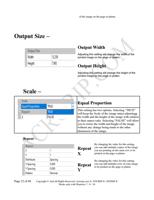
2
1
OUTPU
T
S
I
Z
E
–
.
.
.
.
.
.
.
.
.
.
.
.
.
.
.
.
.
.
.
.
.
.
.
.
.
.
.
.
.
.
.
.
.
.
.
.
.
.
.
.
.
.
.
.
.
.
.
.
.
.
.
.
.
.
.
.
.
.
.
.
.
.
.
.
.
.
.
.
.
.
.
.
.
.
.
.
.
.
.
.
.
.
.
.
.
.
.
.
.
.
.
.
.
.
.
.
.
.
.
.
.
.
.
.
.
.
.
.
.
.
.
.
.
.
.
.
.
.
.
.
.
.
.
.
.
.
.
.
.
.
.
.
.
.
.
.
.
.
.
2
2
O
UTPUT
W
ID
TH
.
.
.
.
.
.
.
.
.
.
.
.
.
.
.
.
.
.
.
.
.
.
.
.
.
.
.
.
.
.
.
.
.
.
.
.
.
.
.
.
.
.
.
.
.
.
.
.
.
.
.
.
.
.
.
.
.
.
.
.
.
.
.
.
.
.
.
.
.
.
.
.
.
.
.
.
.
.
.
.
.
.
.
.
.
.
.
.
.
.
.
.
.
.
.
.
.
.
.
.
.
.
.
.
.
.
.
.
.
.
.
.
.
.
.
.
.
.
.
.
.
.
.
.
.
.
.
.
.
.
.
.
.
.
.
.
.
.
.
.
.
2
2
O
UTPUT
H
E
IGHT
.
.
.
.
.
.
.
.
.
.
.
.
.
.
.
.
.
.
.
.
.
.
.
.
.
.
.
.
.
.
.
.
.
.
.
.
.
.
.
.
.
.
.
.
.
.
.
.
.
.
.
.
.
.
.
.
.
.
.
.
.
.
.
.
.
.
.
.
.
.
.
.
.
.
.
.
.
.
.
.
.
.
.
.
.
.
.
.
.
.
.
.
.
.
.
.
.
.
.
.
.
.
.
.
.
.
.
.
.
.
.
.
.
.
.
.
.
.
.
.
.
.
.
.
.
.
.
.
.
.
.
.
.
.
.
.
.
.
.
.
2
2
S
C
AL
E
–
.
.
.
.
.
.
.
.
.
.
.
.
.
.
.
.
.
.
.
.
.
.
.
.
.
.
.
.
.
.
.
.
.
.
.
.
.
.
.
.
.
.
.
.
.
.
.
.
.
.
.
.
.
.
.
.
.
.
.
.
.
.
.
.
.
.
.
.
.
.
.
.
.
.
.
.
.
.
.
.
.
.
.
.
.
.
.
.
.
.
.
.
.
.
.
.
.
.
.
.
.
.
.
.
.
.
.
.
.
.
.
.
.
.
.
.
.
.
.
.
.
.
.
.
.
.
.
.
.
.
.
.
.
.
.
.
.
.
.
.
.
.
.
.
.
.
.
.
.
.
2
2
E
Q
U
A
L
P
R
O
PO
R
TION
.
.
.
.
.
.
.
.
.
.
.
.
.
.
.
.
.
.
.
.
.
.
.
.
.
.
.
.
.
.
.
.
.
.
.
.
.
.
.
.
.
.
.
.
.
.
.
.
.
.
.
.
.
.
.
.
.
.
.
.
.
.
.
.
.
.
.
.
.
.
.
.
.
.
.
.
.
.
.
.
.
.
.
.
.
.
.
.
.
.
.
.
.
.
.
.
.
.
.
.
.
.
.
.
.
.
.
.
.
.
.
.
.
.
.
.
.
.
.
.
.
.
.
.
.
.
.
.
.
.
.
.
.
.
.
2
2
R
E
PE
A
T
–
.
.
.
.
.
.
.
.
.
.
.
.
.
.
.
.
.
.
.
.
.
.
.
.
.
.
.
.
.
.
.
.
.
.
.
.
.
.
.
.
.
.
.
.
.
.
.
.
.
.
.
.
.
.
.
.
.
.
.
.
.
.
.
.
.
.
.
.
.
.
.
.
.
.
.
.
.
.
.
.
.
.
.
.
.
.
.
.
.
.
.
.
.
.
.
.
.
.
.
.
.
.
.
.
.
.
.
.
.
.
.
.
.
.
.
.
.
.
.
.
.
.
.
.
.
.
.
.
.
.
.
.
.
.
.
.
.
.
.
.
.
.
.
.
.
.
.
.
.
.
2
2
R
E
PE
A
T
X
.
.
.
.
.
.
.
.
.
.
.
.
.
.
.
.
.
.
.
.
.
.
.
.
.
.
.
.
.
.
.
.
.
.
.
.
.
.
.
.
.
.
.
.
.
.
.
.
.
.
.
.
.
.
.
.
.
.
.
.
.
.
.
.
.
.
.
.
.
.
.
.
.
.
.
.
.
.
.
.
.
.
.
.
.
.
.
.
.
.
.
.
.
.
.
.
.
.
.
.
.
.
.
.
.
.
.
.
.
.
.
.
.
.
.
.
.
.
.
.
.
.
.
.
.
.
.
.
.
.
.
.
.
.
.
.
.
.
.
.
.
.
.
.
.
.
.
.
.
2
2
R
E
PE
A
T
Y
.
.
.
.
.
.
.
.
.
.
.
.
.
.
.
.
.
.
.
.
.
.
.
.
.
.
.
.
.
.
.
.
.
.
.
.
.
.
.
.
.
.
.
.
.
.
.
.
.
.
.
.
.
.
.
.
.
.
.
.
.
.
.
.
.
.
.
.
.
.
.
.
.
.
.
.
.
.
.
.
.
.
.
.
.
.
.
.
.
.
.
.
.
.
.
.
.
.
.
.
.
.
.
.
.
.
.
.
.
.
.
.
.
.
.
.
.
.
.
.
.
.
.
.
.
.
.
.
.
.
.
.
.
.
.
.
.
.
.
.
.
.
.
.
.
.
.
.
.
2
2
T
OP T
O
T
O
P
.
.
.
.
.
.
.
.
.
.
.
.
.
.
.
.
.
.
.
.
.
.
.
.
.
.
.
.
.
.
.
.
.
.
.
.
.
.
.
.
.
.
.
.
.
.
.
.
.
.
.
.
.
.
.
.
.
.
.
.
.
.
.
.
.
.
.
.
.
.
.
.
.
.
.
.
.
.
.
.
.
.
.
.
.
.
.
.
.
.
.
.
.
.
.
.
.
.
.
.
.
.
.
.
.
.
.
.
.
.
.
.
.
.
.
.
.
.
.
.
.
.
.
.
.
.
.
.
.
.
.
.
.
.
.
.
.
.
.
.
.
.
.
.
.
.
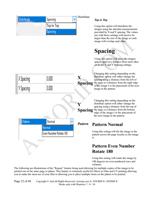
2
2
S
P
A
C
I
N
G
.
.
.
.
.
.
.
.
.
.
.
.
.
.
.
.
.
.
.
.
.
.
.
.
.
.
.
.
.
.
.
.
.
.
.
.
.
.
.
.
.
.
.
.
.
.
.
.
.
.
.
.
.
.
.
.
.
.
.
.
.
.
.
.
.
.
.
.
.
.
.
.
.
.
.
.
.
.
.
.
.
.
.
.
.
.
.
.
.
.
.
.
.
.
.
.
.
.
.
.
.
.
.
.
.
.
.
.
.
.
.
.
.
.
.
.
.
.
.
.
.
.
.
.
.
.
.
.
.
.
.
.
.
.
.
.
.
.
.
.
.
.
.
.
.
.
.
.
2
3
X
S
P
A
C
IN
G
.
.
.
.
.
.
.
.
.
.
.
.
.
.
.
.
.
.
.
.
.
.
.
.
.
.
.
.
.
.
.
.
.
.
.
.
.
.
.
.
.
.
.
.
.
.
.
.
.
.
.
.
.
.
.
.
.
.
.
.
.
.
.
.
.
.
.
.
.
.
.
.
.
.
.
.
.
.
.
.
.
.
.
.
.
.
.
.
.
.
.
.
.
.
.
.
.
.
.
.
.
.
.
.
.
.
.
.
.
.
.
.
.
.
.
.
.
.
.
.
.
.
.
.
.
.
.
.
.
.
.
.
.
.
.
.
.
.
.
.
.
.
.
.
.
.
.
.
2
3
Y
S
P
A
C
IN
G
.
.
.
.
.
.
.
.
.
.
.
.
.
.
.
.
.
.
.
.
.
.
.
.
.
.
.
.
.
.
.
.
.
.
.
.
.
.
.
.
.
.
.
.
.
.
.
.
.
.
.
.
.
.
.
.
.
.
.
.
.
.
.
.
.
.
.
.
.
.
.
.
.
.
.
.
.
.
.
.
.
.
.
.
.
.
.
.
.
.
.
.
.
.
.
.
.
.
.
.
.
.
.
.
.
.
.
.
.
.
.
.
.
.
.
.
.
.
.
.
.
.
.
.
.
.
.
.
.
.
.
.
.
.
.
.
.
.
.
.
.
.
.
.
.
.
.
.
2
3
P
A
T
TE
R
N
N
O
R
M
A
L
.
.
.
.
.
.
.
.
.
.
.
.
.
.
.
.
.
.
.
.
.
.
.
.
.
.
.
.
.
.
.
.
.
.
.
.
.
.
.
.
.
.
.
.
.
.
.
.
.
.
.
.
.
.
.
.
.
.
.
.
.
.
.
.
.
.
.
.
.
.
.
.
.
.
.
.
.
.
.
.
.
.
.
.
.
.
.
.
.
.
.
.
.
.
.
.
.
.
.
.
.
.
.
.
.
.
.
.
.
.
.
.
.
.
.
.
.
.
.
.
.
.
.
.
.
.
.
.
.
.
.
.
.
.
.
.
.
2
3
P
A
T
TE
R
N
E
V
E
N
N
UM
B
E
R
R
O
T
A
T
E
1
8
0
.
.
.
.
.
.
.
.
.
.
.
.
.
.
.
.
.
.
.
.
.
.
.
.
.
.
.
.
.
.
.
.
.
.
.
.
.
.
.
.
.
.
.
.
.
.
.
.
.
.
.
.
.
.
.
.
.
.
.
.
.
.
.
.
.
.
.
.
.
.
.
.
.
.
.
.
.
.
.
.
.
.
.
.
.
.
.
.
.
.
.
.
.
.
.
.
.
.
.
.
.
.
.
.
.
.
.
.
.
.
.
.
.
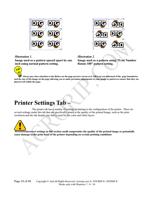
2
3
PRI
N
T
ER
S
E
T
T
I
N
G
S
T
A
B
–
.
.
.
.
.
.
.
.
.
.
.
.
.
.
.
.
.
.
.
.
.
.
.
.
.
.
.
.
.
.
.
.
.
.
.
.
.
.
.
.
.
.
.
.
.
.
.
.
.
.
.
.
.
.
.
.
.
.
.
.
.
.
.
.
.
.
.
.
.
.
.
.
.
.
.
.
.
.
.
.
.
.
.
.
.
.
.
.
.
.
.
.
.
.
.
.
.
.
.
.
.
.
.
.
.
.
.
.
.
.
.
.
.
.
.
.
.
.
.
.
.
.
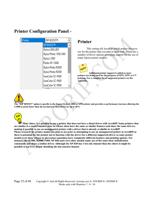
2
4
4
P
R
IN
TE
R
C
O
N
F
IGURA
TION
P
A
N
E
L
-
.
.
.
.
.
.
.
.
.
.
.
.
.
.
.
.
.
.
.
.
.
.
.
.
.
.
.
.
.
.
.
.
.
.
.
.
.
.
.
.
.
.
.
.
.
.
.
.
.
.
.
.
.
.
.
.
.
.
.
.
.
.
.
.
.
.
.
.
.
.
.
.
.
.
.
.
.
.
.
.
.
.
.
.
.
.
.
.
.
.
.
.
.
.
.
.
.
.
.
.
.
.
.
.
.
.
.
.
.
.
.
.
.
.
.
2
5
5
P
R
IN
TE
R
.
.
.
.
.
.
.
.
.
.
.
.
.
.
.
.
.
.
.
.
.
.
.
.
.
.
.
.
.
.
.
.
.
.
.
.
.
.
.
.
.
.
.
.
.
.
.
.
.
.
.
.
.
.
.
.
.
.
.
.
.
.
.
.
.
.
.
.
.
.
.
.
.
.
.
.
.
.
.
.
.
.
.
.
.
.
.
.
.
.
.
.
.
.
.
.
.
.
.
.
.
.
.
.
.
.
.
.
.
.
.
.
.
.
.
.
.
.
.
.
.
.
.
.
.
.
.
.
.
.
.
.
.
.
.
.
.
.
.
.
.
.
.
.
.
.
.
.
.
2
5
5
P
O
R
T
.
.
.
.
.
.
.
.
.
.
.
.
.
.
.
.
.
.
.
.
.
.
.
.
.
.
.
.
.
.
.
.
.
.
.
.
.
.
.
.
.
.
.
.
.
.
.
.
.
.
.
.
.
.
.
.
.
.
.
.
.
.
.
.
.
.
.
.
.
.
.
.
.
.
.
.
.
.
.
.
.
.
.
.
.
.
.
.
.
.
.
.
.
.
.
.
.
.
.
.
.
.
.
.
.
.
.
.
.
.
.
.
.
.
.
.
.
.
.
.
.
.
.
.
.
.
.
.
.
.
.
.
.
.
.
.
.
.
.
.
.
.
.
.
.
.
.
.
.
.
.
.
.
2
6
5
P
a
g
e
4
of
48
C
o
p
y
r
ig
h
t ©
An
d
All Ri
g
h
ts
R
eser
v
ed
|
Acr
o
r
i
p
.
co
m
®
|
DT
GR
I
P
® |
DT
FR
I
P
®
W
o
r
k
s
o
n
ly
with
W
in
d
o
ws 7
/
8
/ 1
0
C
H
E
C
K
P
A
PE
R
S
IZE
.
.
.
.
.
.
.
.
.
.
.
.
.
.
.
.
.
.
.
.
.
.
.
.
.
.
.
.
.
.
.
.
.
.
.
.
.
.
.
.
.
.
.
.
.
.
.
.
.
.
.
.
.
.
.
.
.
.
.
.
.
.
.
.
.
.
.
.
.
.
.
.
.
.
.
.
.
.
.
.
.
.
.
.
.
.
.
.
.
.
.
.
.
.
.
.
.
.
.
.
.
.
.
.
.
.
.
.
.
.
.
.
.
.
.
.
.
.
.
.
.
.
.
.
.
.
.
.
.
.
.
.
.
.
.
.
2
6
6
S
E
TUP
.
.
.
.
.
.
.
.
.
.
.
.
.
.
.
.
.
.
.
.
.
.
.
.
.
.
.
.
.
.
.
.
.
.
.
.
.
.
.
.
.
.
.
.
.
.
.
.
.
.
.
.
.
.
.
.
.
.
.
.
.
.
.
.
.
.
.
.
.
.
.
.
.
.
.
.
.
.
.
.
.
.
.
.
.
.
.
.
.
.
.
.
.
.
.
.
.
.
.
.
.
.
.
.
.
.
.
.
.
.
.
.
.
.
.
.
.
.
.
.
.
.
.
.
.
.
.
.
.
.
.
.
.
.
.
.
.
.
.
.
.
.
.
.
.
.
.
.
.
.
.
2
6
6
R
E
S
O
L
UTION
(
W
H
ITE
)
.
.
.
.
.
.
.
.
.
.
.
.
.
.
.
.
.
.
.
.
.
.
.
.
.
.
.
.
.
.
.
.
.
.
.
.
.
.
.
.
.
.
.
.
.
.
.
.
.
.
.
.
.
.
.
.
.
.
.
.
.
.
.
.
.
.
.
.
.
.
.
.
.
.
.
.
.
.
.
.
.
.
.
.
.
.
.
.
.
.
.
.
.
.
.
.
.
.
.
.
.
.
.
.
.
.
.
.
.
.
.
.
.
.
.
.
.
.
.
.
.
.
.
.
.
.
.
.
.
.
.
2
6
6
R
E
S
O
L
UTION
(
C
O
L
O
R
)
.
.
.
.
.
.
.
.
.
.
.
.
.
.
.
.
.
.
.
.
.
.
.
.
.
.
.
.
.
.
.
.
.
.
.
.
.
.
.
.
.
.
.
.
.
.
.
.
.
.
.
.
.
.
.
.
.
.
.
.
.
.
.
.
.
.
.
.
.
.
.
.
.
.
.
.
.
.
.
.
.
.
.
.
.
.
.
.
.
.
.
.
.
.
.
.
.
.
.
.
.
.
.
.
.
.
.
.
.
.
.
.
.
.
.
.
.
.
.
.
.
.
.
.
.
.
.
.
.
.
.
2
6
6
S
PE
E
D
.
.
.
.
.
.
.
.
.
.
.
.
.
.
.
.
.
.
.
.
.
.
.
.
.
.
.
.
.
.
.
.
.
.
.
.
.
.
.
.
.
.
.
.
.
.
.
.
.
.
.
.
.
.
.
.
.
.
.
.
.
.
.
.
.
.
.
.
.
.
.
.
.
.
.
.
.
.
.
.
.
.
.
.
.
.
.
.
.
.
.
.
.
.
.
.
.
.
.
.
.
.
.
.
.
.
.
.
.
.
.
.
.
.
.
.
.
.
.
.
.
.
.
.
.
.
.
.
.
.
.
.
.
.
.
.
.
.
.
.
.
.
.
.
.
.
.
.
.
.
.
2
8
8
W
A
V
E
.
.
.
.
.
.
.
.
.
.
.
.
.
.
.
.
.
.
.
.
.
.
.
.
.
.
.
.
.
.
.
.
.
.
.
.
.
.
.
.
.
.
.
.
.
.
.
.
.
.
.
.
.
.
.
.
.
.
.
.
.
.
.
.
.
.
.
.
.
.
.
.
.
.
.
.
.
.
.
.
.
.
.
.
.
.
.
.
.
.
.
.
.
.
.
.
.
.
.
.
.
.
.
.
.
.
.
.
.
.
.
.
.
.
.
.
.
.
.
.
.
.
.
.
.
.
.
.
.
.
.
.
.
.
.
.
.
.
.
.
.
.
.
.
.
.
.
.
.
.
.
2
8
8
I
N
K
D
R
O
PL
E
T
(
D
O
T
)
S
IZE
.
.
.
.
.
.
.
.
.
.
.
.
.
.
.
.
.
.
.
.
.
.
.
.
.
.
.
.
.
.
.
.
.
.
.
.
.
.
.
.
.
.
.
.
.
.
.
.
.
.
.
.
.
.
.
.
.
.
.
.
.
.
.
.
.
.
.
.
.
.
.
.
.
.
.
.
.
.
.
.
.
.
.
.
.
.
.
.
.
.
.
.
.
.
.
.
.
.
.
.
.
.
.
.
.
.
.
.
.
.
.
.
.
.
.
.
.
.
.
.
.
.
.
.
.
.
.
.
.
.
2
9
C
OL
OR S
ET
T
I
N
G
S
T
AB
-
.
.
.
.
.
.
.
.
.
.
.
.
.
.
.
.
.
.
.
.
.
.
.
.
.
.
.
.
.
.
.
.
.
.
.
.
.
.
.
.
.
.
.
.
.
.
.
.
.
.
.
.
.
.
.
.
.
.
.
.
.
.
.
.
.
.
.
.
.
.
.
.
.
.
.
.
.
.
.
.
.
.
.
.
.
.
.
.
.
.
.
.
.
.
.
.
.
.
.
.
.
.
.
.
.
.
.
.
.
.
.
.
.
.
.
.
.
.
.
.
.
.
.
.
.
.
.
3
0
P
R
IN
T S
E
T
TIN
G
.
.
.
.
.
.
.
.
.
.
.
.
.
.
.
.
.
.
.
.
.
.
.
.
.
.
.
.
.
.
.
.
.
.
.
.
.
.
.
.
.
.
.
.
.
.
.
.
.
.
.
.
.
.
.
.
.
.
.
.
.
.
.
.
.
.
.
.
.
.
.
.
.
.
.
.
.
.
.
.
.
.
.
.
.
.
.
.
.
.
.
.
.
.
.
.
.
.
.
.
.
.
.
.
.
.
.
.
.
.
.
.
.
.
.
.
.
.
.
.
.
.
.
.
.
.
.
.
.
.
.
.
.
.
.
.
.
.
.
.
.
.
3
0
I
N
K
C
HA
N
N
EL
.
.
.
.
.
.
.
.
.
.
.
.
.
.
.
.
.
.
.
.
.
.
.
.
.
.
.
.
.
.
.
.
.
.
.
.
.
.
.
.
.
.
.
.
.
.
.
.
.
.
.
.
.
.
.
.
.
.
.
.
.
.
.
.
.
.
.
.
.
.
.
.
.
.
.
.
.
.
.
.
.
.
.
.
.
.
.
.
.
.
.
.
.
.
.
.
.
.
.
.
.
.
.
.
.
.
.
.
.
.
.
.
.
.
.
.
.
.
.
.
.
.
.
.
.
.
.
.
.
.
.
.
.
.
.
.
.
.
.
.
.
3
1
I
N
K
LI
M
I
T
–
.
.
.
.
.
.
.
.
.
.
.
.
.
.
.
.
.
.
.
.
.
.
.
.
.
.
.
.
.
.
.
.
.
.
.
.
.
.
.
.
.
.
.
.
.
.
.
.
.
.
.
.
.
.
.
.
.
.
.
.
.
.
.
.
.
.
.
.
.
.
.
.
.
.
.
.
.
.
.
.
.
.
.
.
.
.
.
.
.
.
.
.
.
.
.
.
.
.
.
.
.
.
.
.
.
.
.
.
.
.
.
.
.
.
.
.
.
.
.
.
.
.
.
.
.
.
.
.
.
.
.
.
.
.
.
.
.
.
.
.
.
.
.
.
3
2
I
N
K
C
UR
V
E
S
AD
J
US
T
M
E
N
T
–
.
.
.
.
.
.
.
.
.
.
.
.
.
.
.
.
.
.
.
.
.
.
.
.
.
.
.
.
.
.
.
.
.
.
.
.
.
.
.
.
.
.
.
.
.
.
.
.
.
.
.
.
.
.
.
.
.
.
.
.
.
.
.
.
.
.
.
.
.
.
.
.
.
.
.
.
.
.
.
.
.
.
.
.
.
.
.
.
.
.
.
.
.
.
.
.
.
.
.
.
.
.
.
.
.
.
.
.
.
.
.
.
.
.
.
.
.
.
.
3
2
B
R
IGHT
N
E
S
S
A
N
D
C
O
N
TR
A
S
T
–
.
.
.
.
.
.
.
.
.
.
.
.
.
.
.
.
.
.
.
.
.
.
.
.
.
.
.
.
.
.
.
.
.
.
.
.
.
.
.
.
.
.
.
.
.
.
.
.
.
.
.
.
.
.
.
.
.
.
.
.
.
.
.
.
.
.
.
.
.
.
.
.
.
.
.
.
.
.
.
.
.
.
.
.
.
.
.
.
.
.
.
.
.
.
.
.
.
.
.
.
.
.
.
.
.
.
.
.
.
.
.
.
.
.
.
.
.
.
.
.
.
.
3
3
I
C
C
P
R
O
F
IL
E
S
–
.
.
.
.
.
.
.
.
.
.
.
.
.
.
.
.
.
.
.
.
.
.
.
.
.
.
.
.
.
.
.
.
.
.
.
.
.
.
.
.
.
.
.
.
.
.
.
.
.
.
.
.
.
.
.
.
.
.
.
.
.
.
.
.
.
.
.
.
.
.
.
.
.
.
.
.
.
.
.
.
.
.
.
.
.
.
.
.
.
.
.
.
.
.
.
.
.
.
.
.
.
.
.
.
.
.
.
.
.
.
.
.
.
.
.
.
.
.
.
.
.
.
.
.
.
.
.
.
.
.
.
.
.
.
.
.
.
.
.
.
.
.
3
3
I
C
C
I
N
TE
N
T
O
PTIO
N
S
.
.
.
.
.
.
.
.
.
.
.
.
.
.
.
.
.
.
.
.
.
.
.
.
.
.
.
.
.
.
.
.
.
.
.
.
.
.
.
.
.
.
.
.
.
.
.
.
.
.
.
.
.
.
.
.
.
.
.
.
.
.
.
.
.
.
.
.
.
.
.
.
.
.
.
.
.
.
.
.
.
.
.
.
.
.
.
.
.
.
.
.
.
.
.
.
.
.
.
.
.
.
.
.
.
.
.
.
.
.
.
.
.
.
.
.
.
.
.
.
.
.
.
.
.
.
.
.
.
.
.
.
3
4
4
W
HI
T
E
LA
Y
ER
S
E
T
T
I
N
G
S
T
A
B
.
.
.
.
.
.
.
.
.
.
.
.
.
.
.
.
.
.
.
.
.
.
.
.
.
.
.
.
.
.
.
.
.
.
.
.
.
.
.
.
.
.
.
.
.
.
.
.
.
.
.
.
.
.
.
.
.
.
.
.
.
.
.
.
.
.
.
.
.
.
.
.
.
.
.
.
.
.
.
.
.
.
.
.
.
.
.
.
.
.
.
.
.
.
.
.
.
.
.
.
.
.
.
.
.
.
.
.
.
.
.
.
.
.
.
.
.
3
5
4
W
H
ITE
L
A
YE
R
G
E
N
E
R
A
TION
–
.
.
.
.
.
.
.
.
.
.
.
.
.
.
.
.
.
.
.
.
.
.
.
.
.
.
.
.
.
.
.
.
.
.
.
.
.
.
.
.
.
.
.
.
.
.
.
.
.
.
.
.
.
.
.
.
.
.
.
.
.
.
.
.
.
.
.
.
.
.
.
.
.
.
.
.
.
.
.
.
.
.
.
.
.
.
.
.
.
.
.
.
.
.
.
.
.
.
.
.
.
.
.
.
.
.
.
.
.
.
.
.
.
.
.
.
.
.
.
.
.
.
3
5
5
F
IL
L
A
L
L
A
R
E
A
.
.
.
.
.
.
.
.
.
.
.
.
.
.
.
.
.
.
.
.
.
.
.
.
.
.
.
.
.
.
.
.
.
.
.
.
.
.
.
.
.
.
.
.
.
.
.
.
.
.
.
.
.
.
.
.
.
.
.
.
.
.
.
.
.
.
.
.
.
.
.
.
.
.
.
.
.
.
.
.
.
.
.
.
.
.
.
.
.
.
.
.
.
.
.
.
.
.
.
.
.
.
.
.
.
.
.
.
.
.
.
.
.
.
.
.
.
.
.
.
.
.
.
.
.
.
.
.
.
.
.
.
.
.
.
.
.
.
.
.
.
.
3
5
5
1
0
0
%
W
H
ITE
U
N
D
E
R
A
N
Y
C
O
L
O
R
E
D
P
IX
E
L
.
.
.
.
.
.
.
.
.
.
.
.
.
.
.
.
.
.
.
.
.
.
.
.
.
.
.
.
.
.
.
.
.
.
.
.
.
.
.
.
.
.
.
.
.
.
.
.
.
.
.
.
.
.
.
.
.
.
.
.
.
.
.
.
.
.
.
.
.
.
.
.
.
.
.
.
.
.
.
.
.
.
.
.
.
.
.
.
.
.
.
.
.
.
.
.
.
.
.
.
.
.
.
.
3
5
5
G
R
A
D
IE
N
T
W
H
ITE
U
N
D
E
R
A
N
Y
C
O
L
O
R
E
D
P
IX
E
L
.
.
.
.
.
.
.
.
.
.
.
.
.
.
.
.
.
.
.
.
.
.
.
.
.
.
.
.
.
.
.
.
.
.
.
.
.
.
.
.
.
.
.
.
.
.
.
.
.
.
.
.
.
.
.
.
.
.
.
.
.
.
.
.
.
.
.
.
.
.
.
.
.
.
.
.
.
.
.
.
.
.
.
.
.
.
.
.
.
.
.
.
.
.
.
.
.
.
.
3
5
5
W
H
ITE
G
R
A
D
IE
N
T
(
N
E
GA
TIV
E
)
–
.
.
.
.
.
.
.
.
.
.
.
.
.
.
.
.
.
.
.
.
.
.
.
.
.
.
.
.
.
.
.
.
.
.
.
.
.
.
.
.
.
.
.
.
.
.
.
.
.
.
.
.
.
.
.
.
.
.
.
.
.
.
.
.
.
.
.
.
.
.
.
.
.
.
.
.
.
.
.
.
.
.
.
.
.
.
.
.
.
.
.
.
.
.
.
.
.
.
.
.
.
.
.
.
.
.
.
.
.
.
.
.
.
.
.
.
.
.
3
6
5
W
H
ITE
G
R
A
D
IE
N
T
(
P
O
S
ITIV
E
)
–
.
.
.
.
.
.
.
.
.
.
.
.
.
.
.
.
.
.
.
.
.
.
.
.
.
.
.
.
.
.
.
.
.
.
.
.
.
.
.
.
.
.
.
.
.
.
.
.
.
.
.
.
.
.
.
.
.
.
.
.
.
.
.
.
.
.
.
.
.
.
.
.
.
.
.
.
.
.
.
.
.
.
.
.
.
.
.
.
.
.
.
.
.
.
.
.
.
.
.
.
.
.
.
.
.
.
.
.
.
.
.
.
.
.
.
.
.
.
.
3
6
6
S
PO
T
C
O
L
O
R
(
T
I
FF
R
G
B
)
–
.
.
.
.
.
.
.
.
.
.
.
.
.
.
.
.
.
.
.
.
.
.
.
.
.
.
.
.
.
.
.
.
.
.
.
.
.
.
.
.
.
.
.
.
.
.
.
.
.
.
.
.
.
.
.
.
.
.
.
.
.
.
.
.
.
.
.
.
.
.
.
.
.
.
.
.
.
.
.
.
.
.
.
.
.
.
.
.
.
.
.
.
.
.
.
.
.
.
.
.
.
.
.
.
.
.
.
.
.
.
.
.
.
.
.
.
.
.
.
.
.
.
.
.
.
3
6
6
B
LA
C
K
H
AN
D
LI
N
G
.
.
.
.
.
.
.
.
.
.
.
.
.
.
.
.
.
.
.
.
.
.
.
.
.
.
.
.
.
.
.
.
.
.
.
.
.
.
.
.
.
.
.
.
.
.
.
.
.
.
.
.
.
.
.
.
.
.
.
.
.
.
.
.
.
.
.
.
.
.
.
.
.
.
.
.
.
.
.
.
.
.
.
.
.
.
.
.
.
.
.
.
.
.
.
.
.
.
.
.
.
.
.
.
.
.
.
.
.
.
.
.
.
.
.
.
.
.
.
.
.
.
.
.
.
.
.
.
.
.
.
.
.
3
7
6
B
L
A
C
K
D
E
TE
C
T
T
H
R
E
S
H
O
L
D
.
.
.
.
.
.
.
.
.
.
.
.
.
.
.
.
.
.
.
.
.
.
.
.
.
.
.
.
.
.
.
.
.
.
.
.
.
.
.
.
.
.
.
.
.
.
.
.
.
.
.
.
.
.
.
.
.
.
.
.
.
.
.
.
.
.
.
.
.
.
.
.
.
.
.
.
.
.
.
.
.
.
.
.
.
.
.
.
.
.
.
.
.
.
.
.
.
.
.
.
.
.
.
.
.
.
.
.
.
.
.
.
.
.
.
.
.
.
.
.
.
.
.
.
.
3
7
6
V
IE
W
.
.
.
.
.
.
.
.
.
.
.
.
.
.
.
.
.
.
.
.
.
.
.
.
.
.
.
.
.
.
.
.
.
.
.
.
.
.
.
.
.
.
.
.
.
.
.
.
.
.
.
.
.
.
.
.
.
.
.
.
.
.
.
.
.
.
.
.
.
.
.
.
.
.
.
.
.
.
.
.
.
.
.
.
.
.
.
.
.
.
.
.
.
.
.
.
.
.
.
.
.
.
.
.
.
.
.
.
.
.
.
.
.
.
.
.
.
.
.
.
.
.
.
.
.
.
.
.
.
.
.
.
.
.
.
.
.
.
.
.
.
.
.
.
.
.
.
.
.
.
.
.
3
7
7
W
H
ITE
C
H
A
N
N
E
L
S
E
T
TIN
GS
–
.
.
.
.
.
.
.
.
.
.
.
.
.
.
.
.
.
.
.
.
.
.
.
.
.
.
.
.
.
.
.
.
.
.
.
.
.
.
.
.
.
.
.
.
.
.
.
.
.
.
.
.
.
.
.
.
.
.
.
.
.
.
.
.
.
.
.
.
.
.
.
.
.
.
.
.
.
.
.
.
.
.
.
.
.
.
.
.
.
.
.
.
.
.
.
.
.
.
.
.
.
.
.
.
.
.
.
.
.
.
.
.
.
.
.
.
.
.
.
.
.
.
3
7
7
W
H
ITE
L
A
YE
R
O
F
F
S
E
T
C
O
N
F
IGU
R
A
TION
.
.
.
.
.
.
.
.
.
.
.
.
.
.
.
.
.
.
.
.
.
.
.
.
.
.
.
.
.
.
.
.
.
.
.
.
.
.
.
.
.
.
.
.
.
.
.
.
.
.
.
.
.
.
.
.
.
.
.
.
.
.
.
.
.
.
.
.
.
.
.
.
.
.
.
.
.
.
.
.
.
.
.
.
.
.
.
.
.
.
.
.
.
.
.
.
.
.
.
.
.
.
.
.
.
.
.
.
.
.
3
8
8
DR
Y
M
ODE
DI
AL
OG
.
.
.
.
.
.
.
.
.
.
.
.
.
.
.
.
.
.
.
.
.
.
.
.
.
.
.
.
.
.
.
.
.
.
.
.
.
.
.
.
.
.
.
.
.
.
.
.
.
.
.
.
.
.
.
.
.
.
.
.
.
.
.
.
.
.
.
.
.
.
.
.
.
.
.
.
.
.
.
.
.
.
.
.
.
.
.
.
.
.
.
.
.
.
.
.
.
.
.
.
.
.
.
.
.
.
.
.
.
.
.
.
.
.
.
.
.
.
.
.
.
.
.
.
.
.
.
.
.
.
3
9
8
LEFT
LI
N
E
AN
D R
I
G
HT
LI
N
E
DR
Y
M
ODE
S
ET
T
I
N
G
S
.
.
.
.
.
.
.
.
.
.
.
.
.
.
.
.
.
.
.
.
.
.
.
.
.
.
.
.
.
.
.
.
.
.
.
.
.
.
.
.
.
.
.
.
.
.
.
.
.
.
.
.
.
.
.
.
.
.
.
.
.
.
.
.
.
.
.
.
.
.
.
.
.
.
.
.
.
.
.
.
.
.
.
.
.
.
4
0
9
P
a
g
e
5
of
48
C
o
p
y
r
ig
h
t ©
An
d
All Ri
g
h
ts
R
eser
v
ed
|
Acr
o
r
i
p
.
co
m
®
|
DT
GR
I
P
® |
DT
FR
I
P
®
W
o
r
k
s
o
n
ly
with
W
in
d
o
ws 7
/
8
/ 1
0
L
E
F
T
L
IN
E
A
N
D
R
IGHT
L
IN
E
P
O
S
ITION
.
.
.
.
.
.
.
.
.
.
.
.
.
.
.
.
.
.
.
.
.
.
.
.
.
.
.
.
.
.
.
.
.
.
.
.
.
.
.
.
.
.
.
.
.
.
.
.
.
.
.
.
.
.
.
.
.
.
.
.
.
.
.
.
.
.
.
.
.
.
.
.
.
.
.
.
.
.
.
.
.
.
.
.
.
.
.
.
.
.
.
.
.
.
.
.
.
.
.
.
.
.
.
.
.
.
.
.
.
.
.
.
4
0
9
L
E
F
T
L
IN
E
A
N
D
R
IGHT
L
IN
E
C
O
L
O
R
.
.
.
.
.
.
.
.
.
.
.
.
.
.
.
.
.
.
.
.
.
.
.
.
.
.
.
.
.
.
.
.
.
.
.
.
.
.
.
.
.
.
.
.
.
.
.
.
.
.
.
.
.
.
.
.
.
.
.
.
.
.
.
.
.
.
.
.
.
.
.
.
.
.
.
.
.
.
.
.
.
.
.
.
.
.
.
.
.
.
.
.
.
.
.
.
.
.
.
.
.
.
.
.
.
.
.
.
.
.
.
.
.
.
.
.
.
.
4
0
L
IN
E
W
ID
TH
.
.
.
.
.
.
.
.
.
.
.
.
.
.
.
.
.
.
.
.
.
.
.
.
.
.
.
.
.
.
.
.
.
.
.
.
.
.
.
.
.
.
.
.
.
.
.
.
.
.
.
.
.
.
.
.
.
.
.
.
.
.
.
.
.
.
.
.
.
.
.
.
.
.
.
.
.
.
.
.
.
.
.
.
.
.
.
.
.
.
.
.
.
.
.
.
.
.
.
.
.
.
.
.
.
.
.
.
.
.
.
.
.
.
.
.
.
.
.
.
.
.
.
.
.
.
.
.
.
.
.
.
.
.
.
.
.
.
.
.
.
.
.
.
.
.
4
0
A
D
D
L
E
N
G
TH
.
.
.
.
.
.
.
.
.
.
.
.
.
.
.
.
.
.
.
.
.
.
.
.
.
.
.
.
.
.
.
.
.
.
.
.
.
.
.
.
.
.
.
.
.
.
.
.
.
.
.
.
.
.
.
.
.
.
.
.
.
.
.
.
.
.
.
.
.
.
.
.
.
.
.
.
.
.
.
.
.
.
.
.
.
.
.
.
.
.
.
.
.
.
.
.
.
.
.
.
.
.
.
.
.
.
.
.
.
.
.
.
.
.
.
.
.
.
.
.
.
.
.
.
.
.
.
.
.
.
.
.
.
.
.
.
.
.
.
.
.
.
.
.
.
4
0
U
V
D
R
Y
M
O
D
E
(
L
E
F
T
)
.
.
.
.
.
.
.
.
.
.
.
.
.
.
.
.
.
.
.
.
.
.
.
.
.
.
.
.
.
.
.
.
.
.
.
.
.
.
.
.
.
.
.
.
.
.
.
.
.
.
.
.
.
.
.
.
.
.
.
.
.
.
.
.
.
.
.
.
.
.
.
.
.
.
.
.
.
.
.
.
.
.
.
.
.
.
.
.
.
.
.
.
.
.
.
.
.
.
.
.
.
.
.
.
.
.
.
.
.
.
.
.
.
.
.
.
.
.
.
.
.
.
.
.
.
.
.
.
.
.
.
.
.
4
0
D
R
A
W
L
E
F
T
U
V
L
IN
E
.
.
.
.
.
.
.
.
.
.
.
.
.
.
.
.
.
.
.
.
.
.
.
.
.
.
.
.
.
.
.
.
.
.
.
.
.
.
.
.
.
.
.
.
.
.
.
.
.
.
.
.
.
.
.
.
.
.
.
.
.
.
.
.
.
.
.
.
.
.
.
.
.
.
.
.
.
.
.
.
.
.
.
.
.
.
.
.
.
.
.
.
.
.
.
.
.
.
.
.
.
.
.
.
.
.
.
.
.
.
.
.
.
.
.
.
.
.
.
.
.
.
.
.
.
.
.
.
.
.
.
.
.
.
.
4
0
PRI
N
T
DI
AL
OG
-
.
.
.
.
.
.
.
.
.
.
.
.
.
.
.
.
.
.
.
.
.
.
.
.
.
.
.
.
.
.
.
.
.
.
.
.
.
.
.
.
.
.
.
.
.
.
.
.
.
.
.
.
.
.
.
.
.
.
.
.
.
.
.
.
.
.
.
.
.
.
.
.
.
.
.
.
.
.
.
.
.
.
.
.
.
.
.
.
.
.
.
.
.
.
.
.
.
.
.
.
.
.
.
.
.
.
.
.
.
.
.
.
.
.
.
.
.
.
.
.
.
.
.
.
.
.
.
.
.
.
.
.
.
.
.
.
.
.
4
1
DR
YI
N
G
T
I
M
E
-
.
.
.
.
.
.
.
.
.
.
.
.
.
.
.
.
.
.
.
.
.
.
.
.
.
.
.
.
.
.
.
.
.
.
.
.
.
.
.
.
.
.
.
.
.
.
.
.
.
.
.
.
.
.
.
.
.
.
.
.
.
.
.
.
.
.
.
.
.
.
.
.
.
.
.
.
.
.
.
.
.
.
.
.
.
.
.
.
.
.
.
.
.
.
.
.
.
.
.
.
.
.
.
.
.
.
.
.
.
.
.
.
.
.
.
.
.
.
.
.
.
.
.
.
.
.
.
.
.
.
.
.
.
.
.
.
.
.
.
4
3
C
OL
OR A
N
D WH
I
T
E
P
RI
N
T
ORDER
A
N
D SI
N
G
LE
P
ASS
PRI
N
T
OP
T
I
O
N
.
.
.
.
.
.
.
.
.
.
.
.
.
.
.
.
.
.
.
.
.
.
.
.
.
.
.
.
.
.
.
.
.
.
.
.
.
.
.
.
.
.
.
.
.
.
.
.
.
.
.
.
.
.
.
.
.
.
.
.
4
3
P
R
IN
T
C
OL
OR
F
IR
S
T
.
.
.
.
.
.
.
.
.
.
.
.
.
.
.
.
.
.
.
.
.
.
.
.
.
.
.
.
.
.
.
.
.
.
.
.
.
.
.
.
.
.
.
.
.
.
.
.
.
.
.
.
.
.
.
.
.
.
.
.
.
.
.
.
.
.
.
.
.
.
.
.
.
.
.
.
.
.
.
.
.
.
.
.
.
.
.
.
.
.
.
.
.
.
.
.
.
.
.
.
.
.
.
.
.
.
.
.
.
.
.
.
.
.
.
.
.
.
.
.
.
.
.
.
.
.
.
.
.
.
.
.
.
.
.
4
3
3
W
H
ITE
+
C
OL
OR
.
.
.
.
.
.
.
.
.
.
.
.
.
.
.
.
.
.
.
.
.
.
.
.
.
.
.
.
.
.
.
.
.
.
.
.
.
.
.
.
.
.
.
.
.
.
.
.
.
.
.
.
.
.
.
.
.
.
.
.
.
.
.
.
.
.
.
.
.
.
.
.
.
.
.
.
.
.
.
.
.
.
.
.
.
.
.
.
.
.
.
.
.
.
.
.
.
.
.
.
.
.
.
.
.
.
.
.
.
.
.
.
.
.
.
.
.
.
.
.
.
.
.
.
.
.
.
.
.
.
.
.
.
.
.
.
.
.
.
.
.
4
3
T
UM
BL
E
R
.
.
.
.
.
.
.
.
.
.
.
.
.
.
.
.
.
.
.
.
.
.
.
.
.
.
.
.
.
.
.
.
.
.
.
.
.
.
.
.
.
.
.
.
.
.
.
.
.
.
.
.
.
.
.
.
.
.
.
.
.
.
.
.
.
.
.
.
.
.
.
.
.
.
.
.
.
.
.
.
.
.
.
.
.
.
.
.
.
.
.
.
.
.
.
.
.
.
.
.
.
.
.
.
.
.
.
.
.
.
.
.
.
.
.
.
.
.
.
.
.
.
.
.
.
.
.
.
.
.
.
.
.
.
.
.
.
.
.
.
.
.
.
.
.
.
.
.
.
4
4
S
E
T
C
O
PIE
S
.
.
.
.
.
.
.
.
.
.
.
.
.
.
.
.
.
.
.
.
.
.
.
.
.
.
.
.
.
.
.
.
.
.
.
.
.
.
.
.
.
.
.
.
.
.
.
.
.
.
.
.
.
.
.
.
.
.
.
.
.
.
.
.
.
.
.
.
.
.
.
.
.
.
.
.
.
.
.
.
.
.
.
.
.
.
.
.
.
.
.
.
.
.
.
.
.
.
.
.
.
.
.
.
.
.
.
.
.
.
.
.
.
.
.
.
.
.
.
.
.
.
.
.
.
.
.
.
.
.
.
.
.
.
.
.
.
.
.
.
.
.
.
.
.
.
.
4
4
T
EM
PL
A
T
E
D
I
AL
O
G
.
.
.
.
.
.
.
.
.
.
.
.
.
.
.
.
.
.
.
.
.
.
.
.
.
.
.
.
.
.
.
.
.
.
.
.
.
.
.
.
.
.
.
.
.
.
.
.
.
.
.
.
.
.
.
.
.
.
.
.
.
.
.
.
.
.
.
.
.
.
.
.
.
.
.
.
.
.
.
.
.
.
.
.
.
.
.
.
.
.
.
.
.
.
.
.
.
.
.
.
.
.
.
.
.
.
.
.
.
.
.
.
.
.
.
.
.
.
.
.
.
.
.
.
.
.
.
.
.
.
.
.
.
4
4
S
H
IR
T
T
E
M
PL
A
TE
.
.
.
.
.
.
.
.
.
.
.
.
.
.
.
.
.
.
.
.
.
.
.
.
.
.
.
.
.
.
.
.
.
.
.
.
.
.
.
.
.
.
.
.
.
.
.
.
.
.
.
.
.
.
.
.
.
.
.
.
.
.
.
.
.
.
.
.
.
.
.
.
.
.
.
.
.
.
.
.
.
.
.
.
.
.
.
.
.
.
.
.
.
.
.
.
.
.
.
.
.
.
.
.
.
.
.
.
.
.
.
.
.
.
.
.
.
.
.
.
.
.
.
.
.
.
.
.
.
.
.
.
.
.
.
.
.
.
.
.
4
5
R
E
CT
A
NGL
E
T
E
M
PL
A
TE
.
.
.
.
.
.
.
.
.
.
.
.
.
.
.
.
.
.
.
.
.
.
.
.
.
.
.
.
.
.
.
.
.
.
.
.
.
.
.
.
.
.
.
.
.
.
.
.
.
.
.
.
.
.
.
.
.
.
.
.
.
.
.
.
.
.
.
.
.
.
.
.
.
.
.
.
.
.
.
.
.
.
.
.
.
.
.
.
.
.
.
.
.
.
.
.
.
.
.
.
.
.
.
.
.
.
.
.
.
.
.
.
.
.
.
.
.
.
.
.
.
.
.
.
.
.
.
.
.
.
.
.
.
4
5
E
L
L
IPSE
T
E
M
PL
A
TE
.
.
.
.
.
.
.
.
.
.
.
.
.
.
.
.
.
.
.
.
.
.
.
.
.
.
.
.
.
.
.
.
.
.
.
.
.
.
.
.
.
.
.
.
.
.
.
.
.
.
.
.
.
.
.
.
.
.
.
.
.
.
.
.
.
.
.
.
.
.
.
.
.
.
.
.
.
.
.
.
.
.
.
.
.
.
.
.
.
.
.
.
.
.
.
.
.
.
.
.
.
.
.
.
.
.
.
.
.
.
.
.
.
.
.
.
.
.
.
.
.
.
.
.
.
.
.
.
.
.
.
.
.
.
.
.
.
.
4
5
T
E
M
PL
A
T
E
S
E
T
TIN
GS
.
.
.
.
.
.
.
.
.
.
.
.
.
.
.
.
.
.
.
.
.
.
.
.
.
.
.
.
.
.
.
.
.
.
.
.
.
.
.
.
.
.
.
.
.
.
.
.
.
.
.
.
.
.
.
.
.
.
.
.
.
.
.
.
.
.
.
.
.
.
.
.
.
.
.
.
.
.
.
.
.
.
.
.
.
.
.
.
.
.
.
.
.
.
.
.
.
.
.
.
.
.
.
.
.
.
.
.
.
.
.
.
.
.
.
.
.
.
.
.
.
.
.
.
.
.
.
.
.
.
.
.
.
4
5
5
S
T
A
R
T
X
A
ND
S
T
A
R
T
Y
.
.
.
.
.
.
.
.
.
.
.
.
.
.
.
.
.
.
.
.
.
.
.
.
.
.
.
.
.
.
.
.
.
.
.
.
.
.
.
.
.
.
.
.
.
.
.
.
.
.
.
.
.
.
.
.
.
.
.
.
.
.
.
.
.
.
.
.
.
.
.
.
.
.
.
.
.
.
.
.
.
.
.
.
.
.
.
.
.
.
.
.
.
.
.
.
.
.
.
.
.
.
.
.
.
.
.
.
.
.
.
.
.
.
.
.
.
.
.
.
.
.
.
.
.
.
.
.
.
.
.
.
.
4
5
W
ID
TH
A
ND
H
E
IGHT
-
.
.
.
.
.
.
.
.
.
.
.
.
.
.
.
.
.
.
.
.
.
.
.
.
.
.
.
.
.
.
.
.
.
.
.
.
.
.
.
.
.
.
.
.
.
.
.
.
.
.
.
.
.
.
.
.
.
.
.
.
.
.
.
.
.
.
.
.
.
.
.
.
.
.
.
.
.
.
.
.
.
.
.
.
.
.
.
.
.
.
.
.
.
.
.
.
.
.
.
.
.
.
.
.
.
.
.
.
.
.
.
.
.
.
.
.
.
.
.
.
.
.
.
.
.
.
.
.
.
.
.
.
.
.
4
6
I
NT
E
R
V
A
L
X
A
ND
Y
.
.
.
.
.
.
.
.
.
.
.
.
.
.
.
.
.
.
.
.
.
.
.
.
.
.
.
.
.
.
.
.
.
.
.
.
.
.
.
.
.
.
.
.
.
.
.
.
.
.
.
.
.
.
.
.
.
.
.
.
.
.
.
.
.
.
.
.
.
.
.
.
.
.
.
.
.
.
.
.
.
.
.
.
.
.
.
.
.
.
.
.
.
.
.
.
.
.
.
.
.
.
.
.
.
.
.
.
.
.
.
.
.
.
.
.
.
.
.
.
.
.
.
.
.
.
.
.
.
.
.
.
.
.
.
.
.
.
4
6
X
A
ND
Y
S
TE
PS
.
.
.
.
.
.
.
.
.
.
.
.
.
.
.
.
.
.
.
.
.
.
.
.
.
.
.
.
.
.
.
.
.
.
.
.
.
.
.
.
.
.
.
.
.
.
.
.
.
.
.
.
.
.
.
.
.
.
.
.
.
.
.
.
.
.
.
.
.
.
.
.
.
.
.
.
.
.
.
.
.
.
.
.
.
.
.
.
.
.
.
.
.
.
.
.
.
.
.
.
.
.
.
.
.
.
.
.
.
.
.
.
.
.
.
.
.
.
.
.
.
.
.
.
.
.
.
.
.
.
.
.
.
.
.
.
.
.
.
.
.
.
4
6
A
NGL
E
-
.
.
.
.
.
.
.
.
.
.
.
.
.
.
.
.
.
.
.
.
.
.
.
.
.
.
.
.
.
.
.
.
.
.
.
.
.
.
.
.
.
.
.
.
.
.
.
.
.
.
.
.
.
.
.
.
.
.
.
.
.
.
.
.
.
.
.
.
.
.
.
.
.
.
.
.
.
.
.
.
.
.
.
.
.
.
.
.
.
.
.
.
.
.
.
.
.
.
.
.
.
.
.
.
.
.
.
.
.
.
.
.
.
.
.
.
.
.
.
.
.
.
.
.
.
.
.
.
.
.
.
.
.
.
.
.
.
.
.
.
.
.
.
.
.
.
.
.
.
.
.
4
7
L
IN
E
W
ID
TH
-
.
.
.
.
.
.
.
.
.
.
.
.
.
.
.
.
.
.
.
.
.
.
.
.
.
.
.
.
.
.
.
.
.
.
.
.
.
.
.
.
.
.
.
.
.
.
.
.
.
.
.
.
.
.
.
.
.
.
.
.
.
.
.
.
.
.
.
.
.
.
.
.
.
.
.
.
.
.
.
.
.
.
.
.
.
.
.
.
.
.
.
.
.
.
.
.
.
.
.
.
.
.
.
.
.
.
.
.
.
.
.
.
.
.
.
.
.
.
.
.
.
.
.
.
.
.
.
.
.
.
.
.
.
.
.
.
.
.
.
.
.
.
.
.
4
7
US
ER
DE
F
I
N
ED
T
EM
PL
A
T
E
S
S
ET
T
I
N
G
S
.
.
.
.
.
.
.
.
.
.
.
.
.
.
.
.
.
.
.
.
.
.
.
.
.
.
.
.
.
.
.
.
.
.
.
.
.
.
.
.
.
.
.
.
.
.
.
.
.
.
.
.
.
.
.
.
.
.
.
.
.
.
.
.
.
.
.
.
.
.
.
.
.
.
.
.
.
.
.
.
.
.
.
.
.
.
.
.
.
.
.
.
.
.
.
.
.
.
.
.
.
.
.
.
.
.
4
7
S
A
V
IN
G
C
US
T
O
M
T
E
M
PL
A
T
E
S
E
T
TIN
GS
.
.
.
.
.
.
.
.
.
.
.
.
.
.
.
.
.
.
.
.
.
.
.
.
.
.
.
.
.
.
.
.
.
.
.
.
.
.
.
.
.
.
.
.
.
.
.
.
.
.
.
.
.
.
.
.
.
.
.
.
.
.
.
.
.
.
.
.
.
.
.
.
.
.
.
.
.
.
.
.
.
.
.
.
.
.
.
.
.
.
.
.
.
.
.
.
.
.
.
.
.
.
.
.
.
.
.
.
.
.
.
.
.
4
7
D
E
L
E
T
E
C
US
T
O
M
T
E
M
PL
A
T
E
S
E
TT
IN
GS
-
.
.
.
.
.
.
.
.
.
.
.
.
.
.
.
.
.
.
.
.
.
.
.
.
.
.
.
.
.
.
.
.
.
.
.
.
.
.
.
.
.
.
.
.
.
.
.
.
.
.
.
.
.
.
.
.
.
.
.
.
.
.
.
.
.
.
.
.
.
.
.
.
.
.
.
.
.
.
.
.
.
.
.
.
.
.
.
.
.
.
.
.
.
.
.
.
.
.
.
.
.
.
.
.
.
.
.
.
.
.
.
4
7
R
E
N
A
M
E
C
U
S
T
O
M
T
E
M
PL
A
TE
S
E
T
TIN
GS
-
.
.
.
.
.
.
.
.
.
.
.
.
.
.
.
.
.
.
.
.
.
.
.
.
.
.
.
.
.
.
.
.
.
.
.
.
.
.
.
.
.
.
.
.
.
.
.
.
.
.
.
.
.
.
.
.
.
.
.
.
.
.
.
.
.
.
.
.
.
.
.
.
.
.
.
.
.
.
.
.
.
.
.
.
.
.
.
.
.
.
.
.
.
.
.
.
.
.
.
.
.
.
.
.
.
.
.
.
.
4
7
AP
PE
N
D
I
X
A
.
.
.
.
.
.
.
.
.
.
.
.
.
.
.
.
.
.
.
.
.
.
.
.
.
.
.
.
.
.
.
.
.
.
.
.
.
.
.
.
.
.
.
.
.
.
.
.
.
.
.
.
.
.
.
.
.
.
.
.
.
.
.
.
.
.
.
.
.
.
.
.
.
.
.
.
.
.
.
.
.
.
.
.
.
.
.
.
.
.
.
.
.
.
.
.
.
.
.
.
.
.
.
.
.
.
.
.
.
.
.
.
.
.
.
.
.
.
.
.
.
.
.
.
.
.
.
.
.
.
.
.
.
.
.
.
.
.
.
.
.
4
8
8
P
R
IN
TE
R
S
S
UPP
O
R
TE
D
B
Y TH
E
C
URR
E
N
T V
E
R
S
IO
N
O
F
A
C
R
O
RI
P
V
1
0
.
3
3
:
.
.
.
.
.
.
.
.
.
.
.
.
.
.
.
.
.
.
.
.
.
.
.
.
.
.
.
.
.
.
.
.
.
.
.
.
.
.
.
.
.
.
.
.
.
.
.
.
.
.
.
.
.
.
.
.
.
.
.
.
.
.
.
.
.
.
.
.
4
8
8
P
a
g
e
6
of
48
C
o
p
y
r
ig
h
t ©
An
d
All Ri
g
h
ts
R
eser
v
ed
|
Acr
o
r
i
p
.
co
m
®
|
DT
GR
I
P
® |
DT
FR
I
P
®
W
o
r
k
s
o
n
ly
with
W
in
d
o
ws 7
/
8
/ 1
0
Pr
efa
ce:
A
cr
o
R
I
P
i
s a
R
as
t
er
I
m
age
P
r
oces
sor
des
i
gned
t
o be us
ed
t
o pr
i
nt
i
m
ages
w
i
t
h
D
i
r
ect
t
o
G
ar
m
e
nt
(
D
TG
)
,
D
i
r
ect
t
o
Fi
l
m
(
D
TF
)
, an
d
U
V
(
U
l
t
r
a
V
i
ol
at
e)
f
l
at
bed an
d des
kt
op
pr
i
nt
i
ng sys
t
em
s.
A
cr
o
R
I
P
i
s us
e
d t
o pr
ovi
de
a
n
eas
y
-
t
o
-
use
i
nt
er
f
ace t
o vi
sua
l
i
ze t
he i
m
age’
s pos
i
t
i
on on a
gar
m
ent
, page
, or
pr
i
nt
i
ng
pl
at
en
and m
ak
e adj
ust
m
ent
s t
o
t
he i
nk out
put
an
d i
nt
ens
i
t
y/
vi
br
ancy of
t
he i
m
ag
e pr
i
or
t
o pr
i
nt
i
ng, al
l
ow
i
ng f
or
f
i
ne
cont
r
ol
over
t
hes
e s
et
t
i
ngs f
o
r
each i
nk c
hannel
i
nd
epend
en
t
l
y of
each ot
her
.
The
t
er
m
“
R
I
P” i
s s
hor
t
ha
nd
f
or
R
as
t
er
I
m
age
Proc
es
sor
.
What
a
R
I
P
d
oes
i
s a
l
l
ow
s y
ou t
o m
ake
f
i
ne
-
t
une
d
adj
ust
m
ent
s t
o t
he
over
al
l
vi
sua
l
l
o
ok of
an i
m
a
ge f
or
t
he
pur
pose
s of
pr
i
nt
i
ng.
This
i
n
cl
udes
adj
ust
i
ng col
or
o
ut
put
br
i
ght
nes
s, c
ont
r
as
t
, t
he i
nt
e
nsi
t
y of
a gi
ven c
ol
or
chan
ne
l
t
o br
i
ng
out
t
he vi
br
anc
y of
a s
peci
f
i
c col
or
or
t
o m
ut
e o
r
r
educe t
he
o
ut
put
of
an
ot
her
and adj
ust
t
he l
ayo
ut
of
t
he i
m
age on t
he
page
or
pl
at
en,
al
l
ow
i
ng yo
u t
o cont
r
ol
t
he e
xact
pl
acem
ent
of
t
he i
m
age.
A
cr
o
R
I
P
pr
ovi
des
y
ou
w
i
t
h a
cons
t
ant
l
y updat
e
d pr
evi
e
w
of
t
he i
m
age you
ar
e
w
or
ki
n
g w
i
t
h as
a
dj
ust
m
ent
s
ar
e m
ade.
A
cr
o
R
I
P
i
s a
v
er
y
pow
er
f
ul
R
I
P
s
of
t
w
ar
e
w
i
t
h t
he
benef
i
t
of
a s
i
m
pl
e an
d ea
sy t
o use
use
r
i
nt
er
f
aces
.
W
h
i
l
e
t
her
e ar
e m
any a
dvanc
ed s
et
t
i
ngs t
hat
can hel
p
you t
o b
es
t
adj
ust
t
he vi
sua
l
qual
i
t
y of
y
our
pr
i
nt
s, s
uch as
t
he
abi
l
i
t
y t
o
cr
eat
e pat
t
er
ns f
r
om
an i
m
ag
e al
l
ow
i
ng y
ou t
o r
ep
eat
t
hat
i
m
age m
ul
t
i
pl
e t
i
m
es
acr
oss
a s
heet
of
f
i
l
m
, paper
or
m
a
n
y
di
f
f
er
ent
obj
ect
s pl
aced
on t
h
e pr
i
nt
er
s pl
at
en, t
he abi
l
i
t
y t
o chang
e t
he vol
um
e
of
i
nk t
hat
i
s us
ed by
each i
nk
chan
nel
w
hen
pr
i
nt
i
ng, bei
ng
abl
e t
o
adj
ust
t
he i
nt
ens
i
t
y of
a col
or
channel
i
nde
pend
ent
l
y of
o
t
her
col
or
cha
nnel
s, or
al
l
o
w
i
ng
you t
o ut
i
l
i
ze w
hi
t
e i
nk i
n
yo
ur
pr
i
nt
ed i
m
ages
.
A
cr
oR
I
P
m
akes
i
t
eas
y t
o do t
hes
e t
hi
ngs
and
has
exa
ct
l
y w
h
at
yo
u
need f
r
om
a
R
I
P
t
o m
ake y
o
ur
pr
i
nt
s s
t
and out
.
The m
anu
al
i
s br
oken d
o
w
n
i
n t
o se
ver
al
se
ct
i
ons pr
ovi
di
ng
a det
ai
l
ed ex
pl
anat
i
on of
ever
y f
eat
ur
e t
hat
A
cr
o
R
I
P
pr
ovi
des
. S
om
e s
et
t
i
ngs a
nd f
eat
ur
es
ar
e
f
ai
r
l
y
se
l
f
-
expl
anat
or
y
but
som
e r
e
q
ui
r
e a m
or
e i
n
-
dept
h
expl
anat
i
on as
t
hey
're us
ag
e
and t
hei
r
se
t
t
i
ngs a
r
en't
i
m
m
edi
at
el
y cl
ear
upon f
i
r
st
i
nsp
ect
i
on.
The ai
m
of
t
hi
s m
an
u
al
i
s
t
o pr
ovi
de al
l
of
t
he ne
ces
sa
r
y i
nf
or
m
at
i
on on
A
cr
o
R
I
P's
f
eat
ur
es
,
w
i
t
h i
nsi
ght
pr
ovi
d
e
d as
t
o ho
w
t
hose
f
eat
ur
es
w
or
k
and ho
w
t
he
y coul
d
be bes
t
u
t
i
l
i
zed i
n your
pr
i
nt
w
or
k. t
o
m
ake you m
or
e com
f
or
t
abl
e,
kno
w
l
edgea
bl
e, and
conf
i
de
nt
w
i
t
h
t
he conf
i
gur
at
i
on s
et
t
i
ngs of
t
he
A
cr
oR
I
P
sof
t
w
ar
e f
r
om
t
he s
i
m
pl
es
t
se
t
t
i
ngs t
o t
he m
or
e ad
vanced
se
t
t
i
ngs.
P
a
g
e
7
of
48
C
o
p
y
r
ig
h
t ©
An
d
All Ri
g
h
ts
R
eser
v
ed
|
Acr
o
r
i
p
.
co
m
®
|
DT
GR
I
P
® |
DT
FR
I
P
®
W
o
r
k
s
o
n
ly
with
W
in
d
o
ws 7
/
8
/ 1
0
Icon Le
gend
-
Sever
al
I
cons
ar
e
use
d t
hr
o
u
ghout
t
he co
ur
se
of
t
he m
a
nu
al
t
he f
ol
l
ow
i
ng i
s a
l
i
st
of
t
hose
i
cons
an
d
t
hei
r
i
nt
ent
.
Ma
r
ks c
r
i
t
i
cal
i
nf
or
m
at
i
on on t
he t
opi
c bei
ng
di
sc
uss
ed. I
nf
or
m
at
i
on pr
ovi
ded
af
t
er
t
hi
s i
con m
ay
pr
ovi
de addi
t
i
onal
i
nf
or
m
at
i
on or
i
nf
or
m
yo
u as
t
o r
i
sks
or
t
o r
ai
se
aw
ar
e
nes
s of
i
ss
ue
s whe
n usi
ng
cer
t
ai
n se
t
t
i
ngs f
or
a gi
ven f
e
at
ur
e, and pr
o
vi
de
a s
ol
ut
i
on
t
o t
hose
i
ss
ues
i
f
one i
s a
vai
l
abl
e.
This
i
con i
s us
ed t
o
pr
ovi
de
addi
t
i
onal
i
nf
or
m
at
i
on on a f
eat
ur
e t
hat
di
dn't
bel
on
g i
n t
he expl
anat
i
on
of
t
he f
eat
ur
e i
t
se
l
f
.
T
ypi
cal
l
y
,
t
he i
nf
or
m
at
i
on pr
ovi
ded
a
f
t
er
t
hi
s i
con w
i
l
l
be ver
y sh
or
t
.
This
I
con i
s us
ed
w
h
en a t
i
p
on usa
ge
of
a f
eat
ur
es
i
s gi
v
en, pr
ovi
di
ng
addi
t
i
onal
i
nsi
ght
t
o t
he
f
eat
ur
es
use
and
ho
w
t
o pr
o
p
er
l
y conf
i
gur
e
i
t
s
se
t
t
i
ngs t
o get
t
he bes
t
r
es
ul
t
s f
r
om
t
he f
eat
ur
e bei
ng
di
sc
uss
ed.
In
stalli
ng
Acr
o
RI
P
to
your
co
mpu
ter
.
The com
pany
f
r
om
w
hom
yo
u pur
chas
e
d
t
he
co
py
of
A
cr
oR
I
P
s
houl
d h
ave pr
o
vi
ded y
ou
w
i
t
h a cop
y of
t
he
A
cr
o
R
I
P
b
y som
e m
eans
,
ei
t
her
on a
U
SB
Th
um
b
D
r
i
ve or
b
y di
gi
t
al
dow
nl
oad.
The S
et
up f
i
l
e s
houl
d b
e
na
m
ed
A
cr
o
R
I
P
Set
up.
Pl
ace t
h
i
s f
i
l
e on your
com
put
er
s
D
e
skt
op
and t
he
n
doubl
e
-
cl
i
ck i
t
t
o open i
t
. I
f
t
he com
pa
ny yo
u pur
c
has
ed
A
cr
o
R
I
P
di
d not
pr
ovi
d
e you
w
i
t
h t
he s
et
up f
i
l
e yo
u w
i
l
l
need t
o co
nt
act
t
hem
w
i
t
h t
h
e r
ecei
pt
f
or
your
or
der
and t
hey
w
i
l
l
t
hen be abl
e t
o pr
ov
i
de you
w
i
t
h t
he s
et
up f
i
l
e
needed t
o i
nst
al
l
A
cr
oR
I
P
10
.33
t
o yo
ur
com
put
er
.
T
o i
nst
al
l
A
cr
o
R
I
P
10
.33
t
o
your
com
p
ut
er
, y
ou m
ust
ha
ve
W
i
ndo
w
s
7 or
l
at
er
. D
ur
i
ng t
he
i
nst
al
l
at
i
on pr
oces
s you m
ay
encount
er
a s
yst
em
popu
p or
w
ar
ni
ng
as
ki
ng y
ou i
f
you
w
oul
d l
i
ke t
o
al
l
ow
t
he s
et
up
pr
ogr
am
t
o
m
odi
f
y your
sys
t
em
.
C
l
i
ck t
h
e “Y
es
”
but
t
on an
d t
he s
et
up
pr
oces
s wil
l
cont
i
nue.
C
l
i
cki
ng “
N
o”
w
i
l
l
end t
he i
nst
al
l
at
i
on and cl
os
e t
he s
et
up pr
o
gr
am
.
A
f
t
er
al
l
ow
i
ng t
he
se
t
up f
i
l
e
t
o m
odi
f
y your
sys
t
em
y
ou
w
i
l
l
se
e a
pop
-
up
w
i
ndo
w
l
i
k
e t
he one s
h
o
w
n i
n t
he
i
m
age on t
he l
ef
t
.
I
f
t
he “Crea
t
e a
des
kt
op sh
or
t
cut
” chec
k b
ox i
s not
ch
eck
ed, chec
k i
t
no
w
and t
h
en cl
i
ck t
he “
N
ext
-
>
” but
t
on
t
o pr
oceed.
The set
up
w
i
l
l
adva
nce an
d d
i
spl
ay a
sum
m
ar
y
of
t
he a
ct
i
ons i
t
w
i
l
l
per
f
or
m
.
T
o pr
o
ce
ed w
i
t
h t
he
i
nst
al
l
at
i
on,
cl
i
ck t
he “I
nst
al
l
” but
t
on, t
o
cance
l
t
he i
nst
al
l
at
i
on cl
i
ck t
he “Ca
ncel
” b
ut
t
on.
O
nce
you
cl
i
ck t
he “I
nst
al
l
” but
t
on t
he di
al
og
w
i
ndo
w
w
i
l
l
di
spl
ay a pr
ogr
es
s ba
r
l
i
ke
t
he one s
ho
w
n
i
n
t
he
i
m
age bel
ow
and i
nf
or
m
at
i
o
n about
f
i
l
es
t
hat
i
t
i
s i
nst
al
l
i
ng t
o your
com
put
er
.
O
nce t
h
e i
nst
al
l
has
com
pl
et
ed copyi
n
g al
l
of
t
he f
i
l
es
ne
ces
sa
r
y f
or
A
cr
oR
I
P
t
o f
unct
i
on t
he di
al
og
w
i
l
l
change
pr
ovi
di
ng a
n i
nst
al
l
at
i
on suc
ces
sf
ul
m
es
sa
ge
and i
nst
r
uc
t
i
ons on ho
w
t
o r
u
n t
he
A
cr
o
R
I
P
pr
ogr
am
.
Y
ou
can
P
a
g
e
8
of
48
C
o
p
y
r
ig
h
t ©
An
d
All Ri
g
h
ts
R
eser
v
ed
|
Acr
o
r
i
p
.
co
m
®
|
DT
GR
I
P
® |
DT
FR
I
P
®
W
o
r
k
s
o
n
ly
with
W
in
d
o
ws 7
/
8
/ 1
0
cl
i
ck t
he “Fi
ni
sh”
but
t
on t
o
c
l
ose
t
he s
et
up pr
ogr
am
.
O
n y
our
des
kt
o
p t
her
e
w
i
l
l
be an i
con
on yo
ur
des
kt
op
f
o
r
t
he
A
cr
o
R
I
P
sof
t
w
ar
e.
D
ou
bl
e
-
cl
i
ck t
hi
s i
con on y
o
ur
des
kt
op or
under
“
D
T
G
R
I
P
” i
n your
st
a
r
t
m
enu
t
o ope
n
A
cr
o
R
I
P
.
Ma
ke s
ur
e y
ou ha
ve t
he
U
S
B
don
gl
e t
hat
w
as
se
nt
t
o yo
u w
i
t
h yo
ur
or
der
I
nse
r
t
ed i
n
t
o
a U
S
B
p
or
t
on
t
he com
put
er
yo
u hav
e
A
cr
o
R
I
P
i
nst
al
l
ed t
o or
t
he s
of
t
w
a
r
e w
i
l
l
di
spl
ay an er
r
or
m
es
s
age s
t
at
i
ng i
t
can not
f
i
nd a
key l
oc
k.
A
c
r
o
R
I
P
w
i
l
l
not
l
oad or
f
u
nct
i
on
w
i
t
hout
t
he
U
S
B
D
on
gl
e K
e
y i
nse
r
t
ed i
nt
o
one of
t
he
U
S
B
p
or
t
s on t
he
com
put
er
you
ar
e us
i
ng
A
cr
o
R
I
P
o
n at
al
l
t
i
m
es
.
N
o
w
t
hat
A
cr
oR
I
P
10
i
s i
nst
al
l
ed on your
com
put
er
w
e c
an cont
i
nue
on t
o t
he n
ext
C
hapt
er
on “
U
si
ng t
he
A
c
r
o
R
I
P
U
se
r
I
nt
er
f
ace”
w
hi
ch pr
ovi
des
a
nd i
n
-
de
pt
h exp
l
anat
i
on of
ever
y se
ct
i
on of
t
he
A
cr
o
R
I
P
use
r
i
nt
er
f
ace
w
i
ndo
w
t
he f
e
at
ur
es
pr
ovi
de
d by eac
h se
ct
i
on a
nd i
nf
or
m
at
i
on per
t
ai
ni
ng t
o t
hei
r
se
t
t
i
ngs a
nd
usa
ge.
Using the
Acr
oRIP
User
Inte
rfa
ce
The
A
cr
oR
I
P
u
se
r
i
n
t
e
r
f
a
ce
i
s b
r
oken
dow
n i
nt
o
se
ve
r
a
l
ea
sy t
o
unde
r
s
t
and
and u
s
e s
ec
t
i
ons e
ac
h
pr
ovi
di
n
g i
n
f
or
m
a
t
i
on r
ega
r
di
ng
t
he
i
m
age
y
ou
a
r
e wor
ki
ng w
i
t
h
and t
he p
r
i
n
t
e
r
yo
u w
i
l
l
be u
si
n
g t
o
pr
i
nt
t
he
i
m
age
.
I
n t
hi
s
se
c
t
i
on w
e w
i
l
l
go
t
hr
o
ugh e
ac
h o
f
t
he u
se
r
i
nt
er
f
ac
es
s
ec
t
i
on
s e
xp
l
ai
n
i
ng e
ac
h on
e a
nd
t
h
e
i
nf
o
r
m
at
i
on
t
ha
t
you w
i
l
l
f
i
nd i
n
i
t
.
The f
o
l
l
ow
i
ng
i
l
l
us
t
r
at
i
on p
r
ovi
d
es
an a
t
a g
l
an
ce
ex
pl
a
nat
i
on o
f
a nu
m
b
er
o
f
t
he i
n
t
er
f
ac
e s
e
ct
i
ons
t
h
at
ar
e o
n sc
r
ee
n
t
h
e e
n
t
i
r
e
t
i
m
e you a
r
e u
si
ng
t
h
e pr
o
gr
a
m
.
T
ak
e a
m
o
m
en
t
t
o r
e
vi
e
w
ea
ch o
f
t
h
e s
e
ct
i
on
s of
t
h
e
i
nt
er
f
ac
e
t
o
f
a
m
i
l
i
ar
i
ze
you
r
se
l
f
w
i
t
h
t
he
l
ay
out
of
t
he
pr
ogr
am
.
Ill
u
str
at
ion
1.A
–
Ac
r
oRIP
Use
r
In
te
r
fac
e
a
t a glan
c
e
Us
ing t
he
dr
op
-
dow
n
me
nu
s.
This
s
ec
t
i
on
pr
ov
i
de
s i
nf
o
r
m
a
t
i
on
r
eg
ar
d
i
ng
t
he
usa
g
e
of
t
h
e
dr
op
-
d
ow
n
m
enu
i
n t
he
A
cr
oR
I
P
w
i
ndow
.
Ma
ny
se
t
t
i
ngs c
an b
e a
d
j
us
t
ed us
i
ng
t
hes
e m
enus
,
you
ca
n a
l
so p
er
f
or
m
b
as
i
c pr
i
n
t
er
m
ai
nt
e
nanc
e s
u
ch a
s
pr
i
n
t
hea
d c
l
ea
ni
n
gs a
n
d pr
i
nt
no
zz
l
e
che
cks
. K
e
yboa
r
d sh
or
t
cu
t
s
t
ha
t
al
l
ow
yo
u t
o
ac
c
e
ss
t
h
e
m
enu
and
i
t
s
opt
i
ons
qui
ck
l
y u
si
ng
t
h
e ke
yb
oar
d
w
i
l
l
be p
r
ov
i
ded n
ext
t
o
ea
c
h m
en
u i
t
e
m
as
t
h
ey a
r
e be
i
ng exp
l
ai
ned.
Ill
u
str
at
ion
1.b
–
Ac
r
oRIP's Dr
op
Dow
n
M
e
n
u
s
P
a
g
e
9
of
48
C
o
p
y
r
ig
h
t ©
An
d
All Ri
g
h
ts
R
eser
v
ed
|
Acr
o
r
i
p
.
co
m
®
|
DT
GR
I
P
® |
DT
FR
I
P
®
W
o
r
k
s
o
n
ly
with
W
in
d
o
ws 7
/
8
/ 1
0
F
i
l
e M
enu
(A
lt + F)
-
The Fil
e m
en
u
opt
i
on
pr
ovi
d
es
som
e bas
i
c opt
i
ons t
o
con
f
i
gur
e your
pr
i
nt
er
,
t
he di
spl
ay ar
ea an
d t
o per
f
or
m
som
e bas
i
c pr
i
nt
er
m
ai
nt
e
nance l
i
ke pr
i
nt
i
ng
a nozzl
e ch
eck a
nd per
f
or
m
i
ng a pr
i
nt
hea
d cl
eani
ng.
The
m
enu opt
i
ons
under
Fi
l
e w
i
l
l
be expl
ai
ned
bel
ow
.
Ope
n
(Fil
e
)
(A
lt + O)
-
This
m
enu
opt
i
on
w
i
l
l
br
i
ng up a di
al
og
box
w
hi
ch
w
i
l
l
al
l
ow
yo
u t
o ope
n a
num
ber
of
i
m
age f
i
l
e f
or
m
at
s i
ncl
udi
ng
E
PS (
E
ncaps
ul
at
ed Post
Scr
i
pt
)
,
PS(Pos
t
Scr
i
pt
)
, P
D
F(
P
or
t
abl
e D
oc
um
ent
Form
at
)
,
B
MP(
W
i
ndo
w
s
B
i
t
m
ap
)
,TIFF(
T
ag
ged I
m
age
Fi
l
e For
m
at
)
, JP
G
(
Jpe
g c
om
pr
es
se
d i
m
age
f
or
m
at
)
, PN
G
(
Port
abl
e
N
et
w
or
k G
r
a
phi
c)
, and
PS
D
(
P
hot
oshop
D
at
a Fi
l
e)
.
Y
o
u
c
a
n
o
p
e
n
a
n
u
m
b
e
r
o
f
im
a
g
e
s in
Ac
r
o
RI
P
a
t
th
e
sa
m
e
tim
e
,
e
a
c
h
b
e
in
g
a
d
d
e
d
to
a
t
h
u
m
b
n
a
i
l
li
st d
isp
la
y
a
t
th
e
b
o
tto
m
o
f
th
e
u
se
r
in
te
r
fa
c
e
.
P
a
g
e
10
of
48
C
o
p
y
r
ig
h
t ©
An
d
All Ri
g
h
ts
R
eser
v
ed
|
Acr
o
r
i
p
.
co
m
®
|
DT
GR
I
P
® |
DT
FR
I
P
®
W
o
r
k
s
o
n
ly
with
W
in
d
o
ws 7
/
8
/ 1
0
im
a
g
e
s th
a
t
h
a
v
e
a
la
r
g
e
f
il
e
siz
e
d
u
e
to
t
h
e
a
m
o
u
n
t
o
f
u
n
c
o
m
p
r
e
ss
e
d
o
r
RA
W
im
a
g
e
d
a
t
a
t
h
a
t
is p
r
e
se
n
t
c
a
n
c
a
u
se
issues
in
Ac
r
o
RI
P
when
c
o
n
v
e
r
tin
g
t
h
e
fi
le i
n
to
p
r
in
te
r
in
str
u
c
tio
n
s b
e
c
a
u
se
a
ll
o
f
th
e
i
n
fo
r
m
a
ti
o
n
p
r
e
se
n
t
in
t
h
e
im
a
g
e
fil
e
wi
ll
n
e
e
d
t
o
b
e
c
o
n
v
e
r
te
d
,
u
sin
g
fi
les
th
a
t
a
r
e
t
o
o
l
a
r
g
e
t
o
sto
r
e
i
n
m
e
m
o
r
y
d
u
r
in
g
th
e
c
o
n
v
e
r
sio
n
p
r
o
c
e
ss
c
a
n
c
a
u
se
Ac
r
o
RI
P
t
o
sud
d
e
n
ly
b
e
c
o
m
e
u
n
r
e
spo
n
si
v
e
o
r
c
r
a
sh
.
R
e
load
(
F
5
)
-
This
m
enu i
t
em
w
i
l
l
al
l
ow
y
ou t
o r
el
oad al
l
of
t
he i
m
ages
you ha
ve op
en i
n
A
cr
o
R
I
P
A
cr
o
at
t
he t
i
m
e. I
f
t
her
e
had bee
n any
chan
ges
t
o t
hes
e f
i
l
es
t
he new
i
nf
or
m
at
i
on
w
i
l
l
be updat
e
d i
n t
he us
er
i
n
t
er
f
ace t
o r
ef
l
ect
t
hem
.
C
lose
This
m
enu
opt
i
on
w
i
l
l
cl
os
e t
he i
m
age t
hat
you
cur
r
ent
l
y
have s
el
ect
ed a
nd ar
e
vi
ew
i
n
g i
n t
he
use
r
i
nt
er
f
ace.
C
lose
A
ll
This
m
enu
opt
i
on
w
i
l
l
cl
ose
al
l
i
m
ages
t
hat
you cur
r
ent
l
y
have op
en i
n
A
cr
o
R
I
P
.
"
Do you need help?
Call Me Back