User Manual of Machine Vision Camera SDK Plugin (DirectShow)
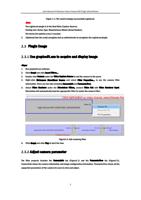
Figure 1-1: The result of plugin successfully registered.
Note:
The registered plugin is in the item Video Capture Sources.
Naming rule: Device Type: Manufacturer Model (Serial Number)
The device list updates every 3 seconds.
3. (Optional) Run the script unregister.bat as administrator to unregister the registered plugin.
2.3 Plugin Usage
2.3.1 Use graphedit.exe to acquire and display image
Steps:
1. Run graphedt.exe software.
2. Click Graph and click Insert Filters…
3. Double-click Camera under the Video Capture Source to add the camera to the panel.
4. Right-click MvCamera DirectShow Source and select Filter Properties… to see the camera filter
information. There are two tabs including CameraInfo and ParameterTree.
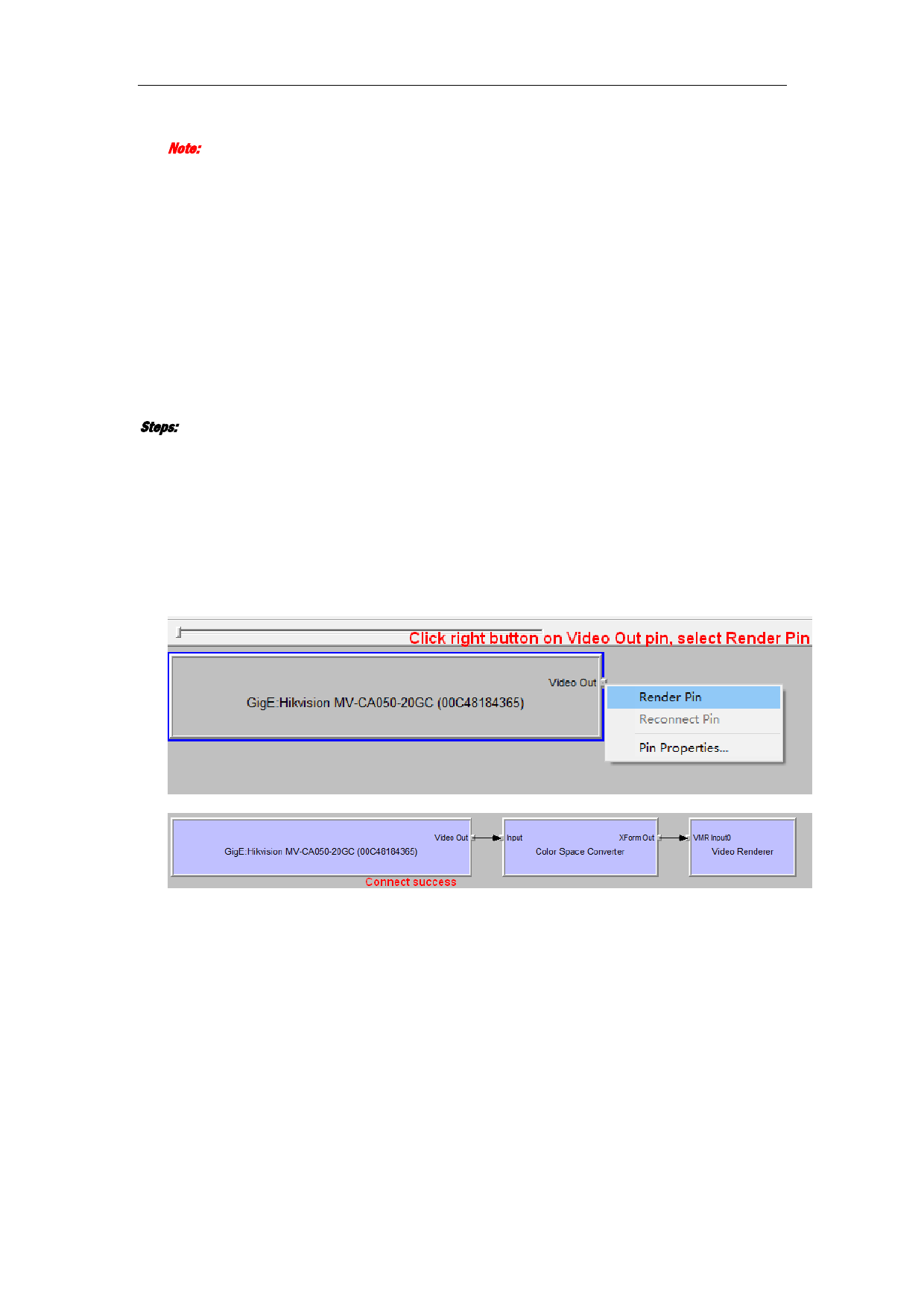
5. Select Video Renderer under the Directshow Filters, connect Video Out with Video Renderer Input.
Directshow will automatically load the appropriate Filter to render the camera Filter.
Figure2-3: Add rendering filter
6. Click Graph and click Play to start live view.
2.3.2 Adjust camera parameter
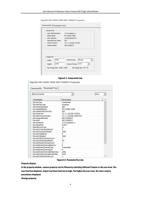
The filter property includes the CameraInfo tab (Figure2-1) and the ParameterTree tab (Figure2-2).
CameraInfo shows the camera information and image configuration information. ParameterTree shows all the
supported parameters of the camera for users to view and adjust.
3