User Manual of Machine Vision Camera SDK Demo (VB)
Chapter 2BasicDemo
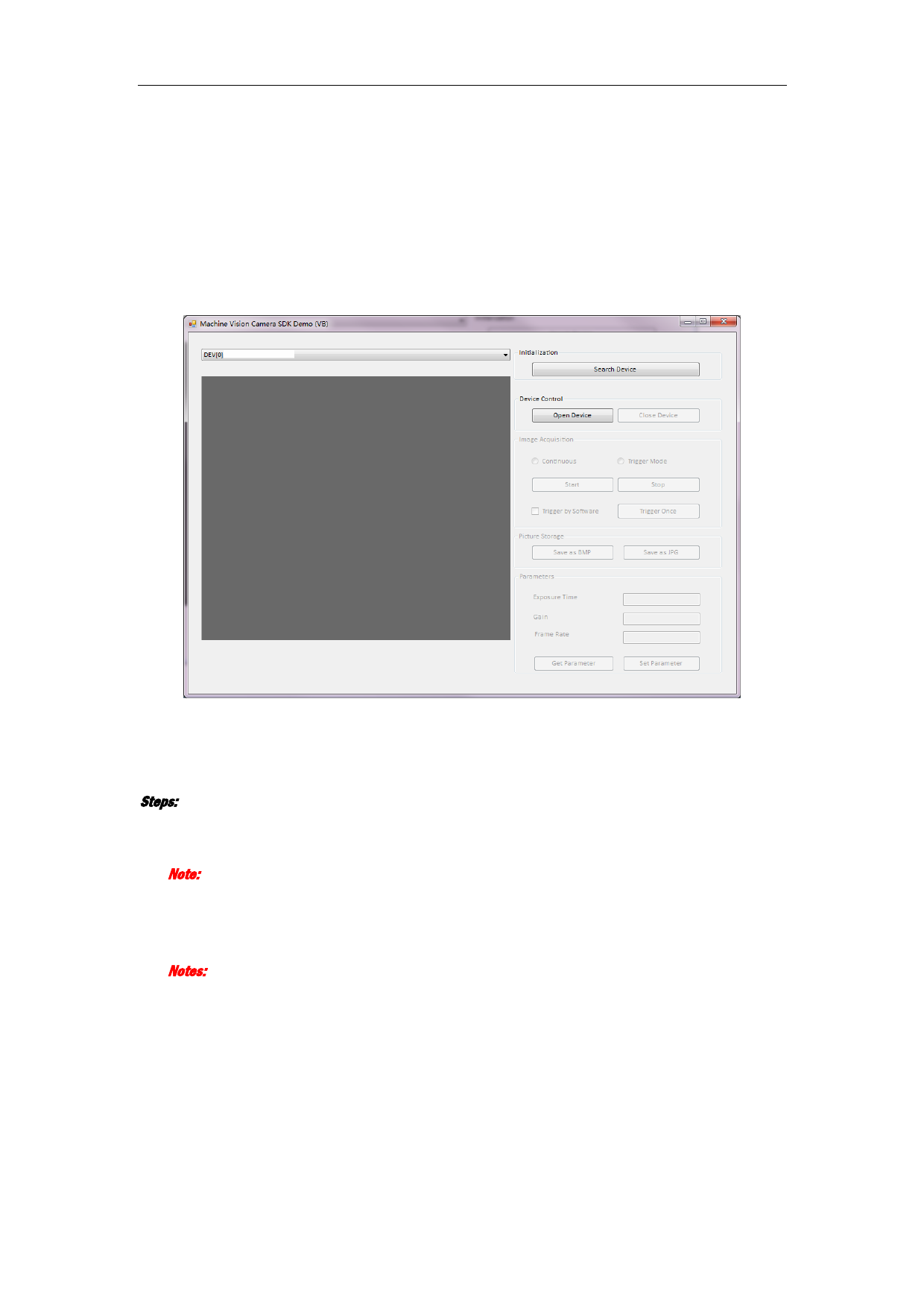
2.1 Interface Overview
The BasicDemo based on VB.NET for machine vision camera can realize the function of image display,
initialization, image acquisition, picture storage and parameter control.
2.2 Operation Procedure
Steps:
1. Click Search Device in the Initialization field to search the online device.
The online devices will display in the drop-down list of the upper left corner field.
Note: The devices will be displayed as “device ID” + “device name” + “IP address”.
2. Click to select a device in the drop-down list.
3. Click Open Device button in the Initialization field to active the Image Acquisition field.
4. Select image acquisition mode as Continuous or Trigger Mode.
Notes:
The default image acquisition mode is Continuous.
When Trigger Mode is selected, you can check the Trigger by Software checkbox.
5. Click Start button in the Image Acquisition field to start image acquisition.
The real-time image will display on the left display window if the Continuous mode is selected.
You can also click Trigger Once button to realize software trigger for once if Trigger by Software checkbox
is checked in Trigger mode.
2