EasyRoute ATC CNC Router Blank Firmware Upgrade Guide
Resolved Bugs, Improved Performance, and Enhanced Stability
Warning: Upgrading the firmware will erase all current settings and files. You can back up your
G-code files, but all settings must be manually re-entered afterward. Only upgrade if necessary.
Step 1: Create a Backup Before Proceeding
Refer to the guide: https://cncu.co.za/EasyRoute-CNC-Router/EasyRoute%20System%20Backup%20and%20Restore.pdf
Step 2: Note Down Critical Settings
Based on the manual: https://cncu.co.za/EasyRoute-CNC-Router/EasyRoute%20CNC%20Control%20Panel%20Manufacture%20Manual.pdf
Page 51: All "Tool Change Parameters" (essential; otherwise, tool change calibration must be redone – see
instructions: https://youtu.be/MpIgJMLFMSk )
Page 52: All "Velocity Parameters"
Page 53: All "Parameters Related with Machine Tool Debugging" and "Spindle Parameters"
Step 3: Download the Firmware
Download "2026 Model ATC Blank.zip" (or the latest major upgrade file containing "Blank" in the name) from:
https://cncu.co.za/EasyRoute-CNC-Router/Firmware/
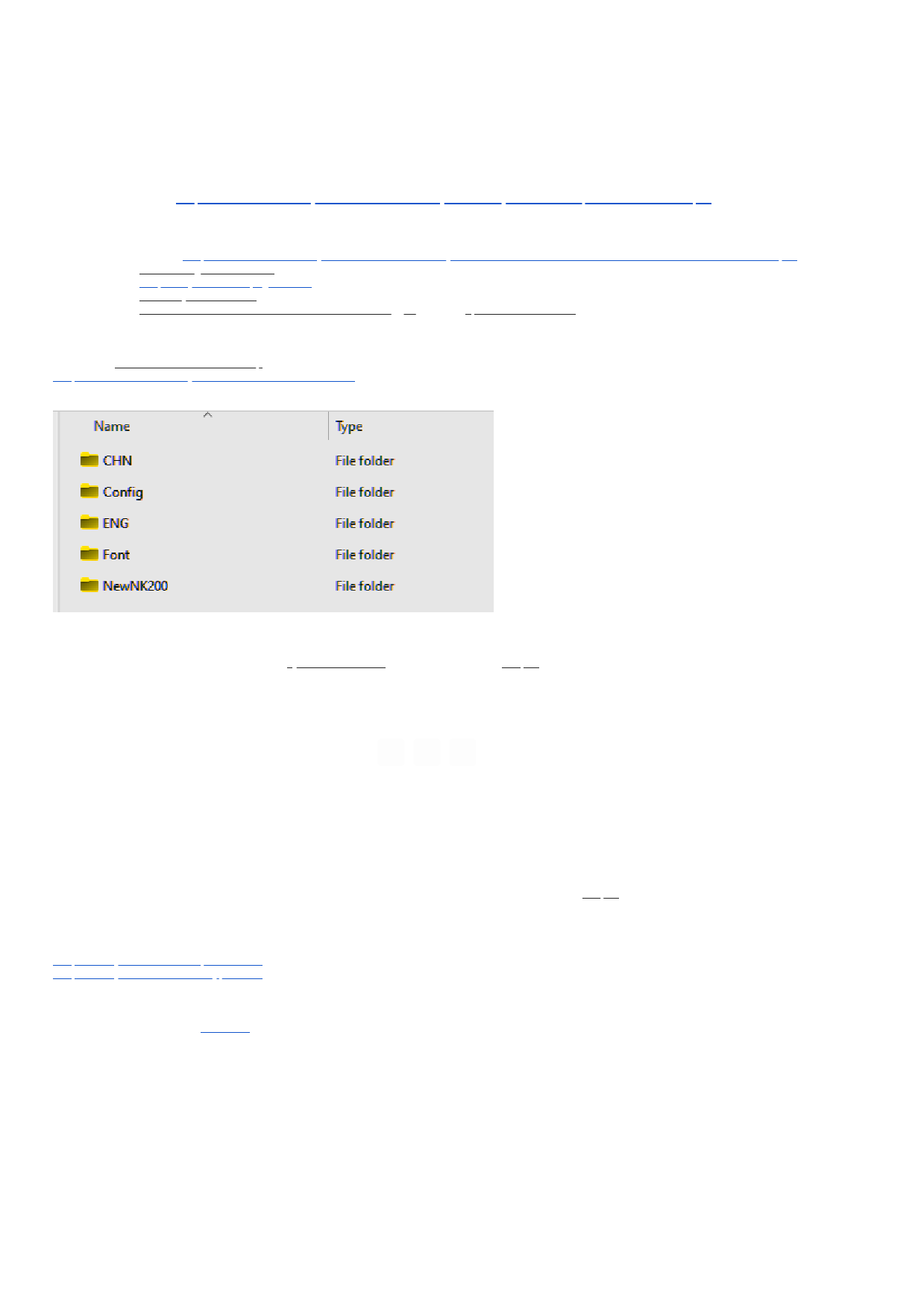
Unzip the files and copy them to the root directory of a freshly formatted USB flash drive.
Step 4: Perform the Firmware Upgrade
Follow the boot process to enter the "System Core Menu" (as described in Step 1 of the backup guide):
1. Delete parameters
2. Update public
3. Update system
Reboot the system. Important: After rebooting, do not perform homing.
Step 5: Restore Parameters
Manually re-enter all settings noted in Step 2.
Reboot. Well done!
Please note:
In most cases, you can also recover previous firmware using the recovery steps in the Step 1 backup/restore guide.
Risk Note: This process can render the system unbootable in rare cases, so only upgrade when truly necessary.
If issues arise and a new controller is needed:
https://buythis.co.za/r-panel-atch
https://buythis.co.za/r-keypad-atc
Make a new backup if everything goes well.
For assistance, contact AM.CO.ZA Support (Machine.Africa) via WhatsApp: +27 60 600 7000.